記事公開日
Hands-on with AWS Kiro's Agent Steering Feature

Key Takeaways
This article explains how to use "Agent Steering," a core feature of the next-gen IDE "AWS Kiro," to make AI persistently learn your development rules. The author demonstrates practical steps to enforce project-specific conventions through a hands-on ToDo app demo.
- Automating Rule Definition with Agent Steering:
By placing Markdown files (product.md, structure.md, tech.md) in the .kiro/steering directory, you can ensure the AI consistently understands coding conventions and project structure. - Verified Process and Benefits:
In the demo, a unique rule—"Add explanatory comments to source code"—was defined. We verified on the actual machine that code generated in Vibe mode followed this convention without needing individual prompts. - Author's Verification and Impressions:
Eliminating the need for repetitive instructions in every chat not only reduces the burden on developers but also contributes to maintaining consistent performance across the entire team.
Introduction
Hello, this is Goto from the DX Solution Division.
In this article, I will explain the Agent Steering feature, one of the key functionalities of AWS Kiro.
I have also prepared a simple demo, so even if you are touching AWS Kiro for the first time, you should be able to get a feel for how it works!
Challenges with Conventional AI Tools
When using conventional AI generation tools, have you ever experienced this? "I let the AI write the code, but I end up constantly fixing it because it doesn't match my project's rules..."
While traditional AI chats and coding assistants are good at writing general code, they struggle to grasp a team's unique "project overview" or "development rules."
This results in the hassle of having to describe prerequisites and output specifications in every single chat.
AWS Kiro's Agent Steering feature is here to solve that very problem.
What is Agent Steering?
Agent Steering provides Kiro with continuous information about your workspace via Markdown files.
By placing Markdown files under a dedicated directory (.kiro/steering), you can make the AI persistently learn team-wide coding conventions and architectural decisions.
Furthermore, it can automatically read source code from your workspace to generate these Markdown files for you.
This allows Kiro to generate code consistent with established patterns, libraries, and standards defined in the steering files, without needing you to explain the rules in every chat.
Key Benefits
- Consistent Code Generation: All components, API endpoints, or tests follow the team's established patterns and conventions.
- Reduced Repetition: Eliminates the need to explain workspace standards in every conversation; outputs always comply with Steering conventions.
- Team Alignment: Whether a developer is new to the workspace or experienced, everyone works with the same standards.
- Scalable Project Knowledge: Documentation that scales with the codebase, recording decisions and patterns as the project evolves.
Demo
Now that we've covered the overview of Steering, let's go through a simple demo to check the usability of AWS Kiro and the convenience of the Agent Steering feature.
Assume a project rule is defined as: "Code explanations must always be attached to the source code."
<Demo Content>
We will create a ToDo application as an example.
<Demo Flow>
1. Ask Kiro to generate code in "Vibe Mode" (No Steering).
↓
2. Automatically create steering files from the source code using Agent Steering.
↓
3. Add the rule "Explanatory comments are required in source code" to the Steering definition.
↓
4. After setting up Steering, execute code modification with Kiro. Confirm if it is reflected in the source code.
Creating a Simple ToDo List
Ask AWS Kiro to Create a Simple ToDo List Application
Since we are only creating simple code this time, we will start with "Vibe Mode," which excels in intuitive operation.
Let's create a ToDo list with the following features:
- Add tasks
- Toggle completion/incompletion with checkboxes
- Delete tasks
- Save data in local storage (Retained even after closing the browser)
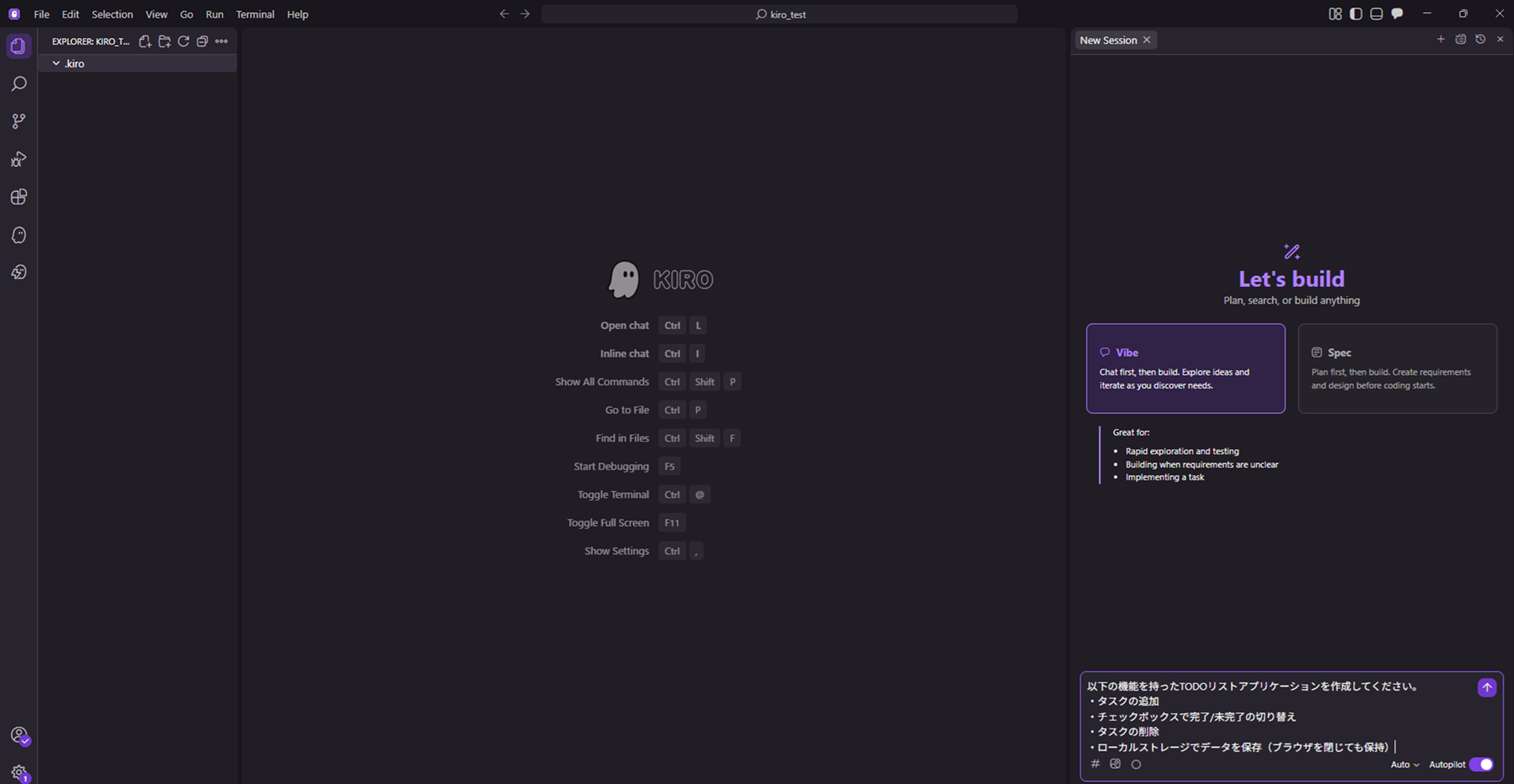
When I entered the request in the chat and executed it, it automatically created the script for the ToDo list app.
The chat also provides details about the implemented functions.
You can confirm that the created script files have been added under the folder in the top left of the screen.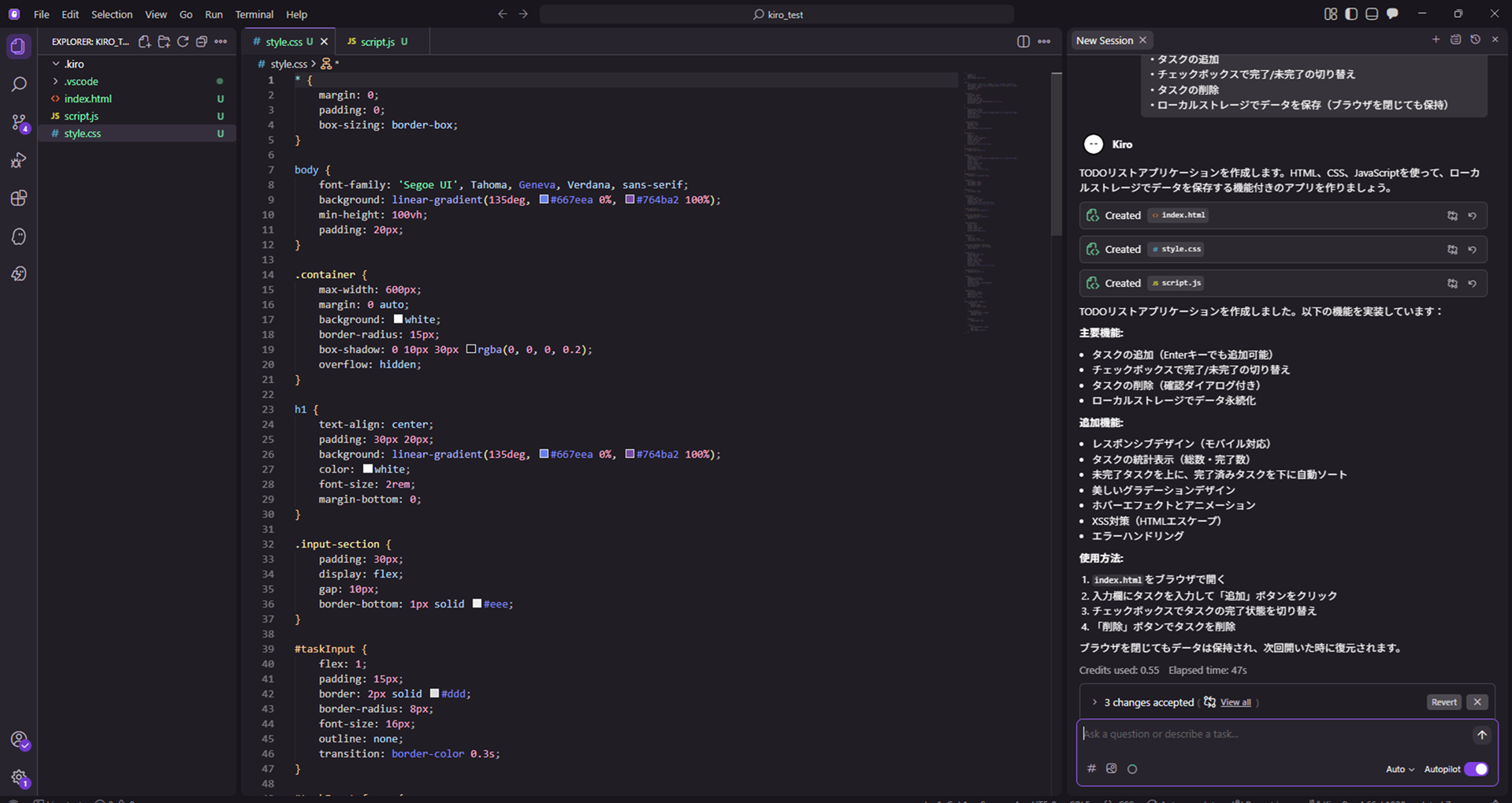
Now, let's actually run the application.
When I asked "Run the application" in the chat, it automatically launched it in the browser.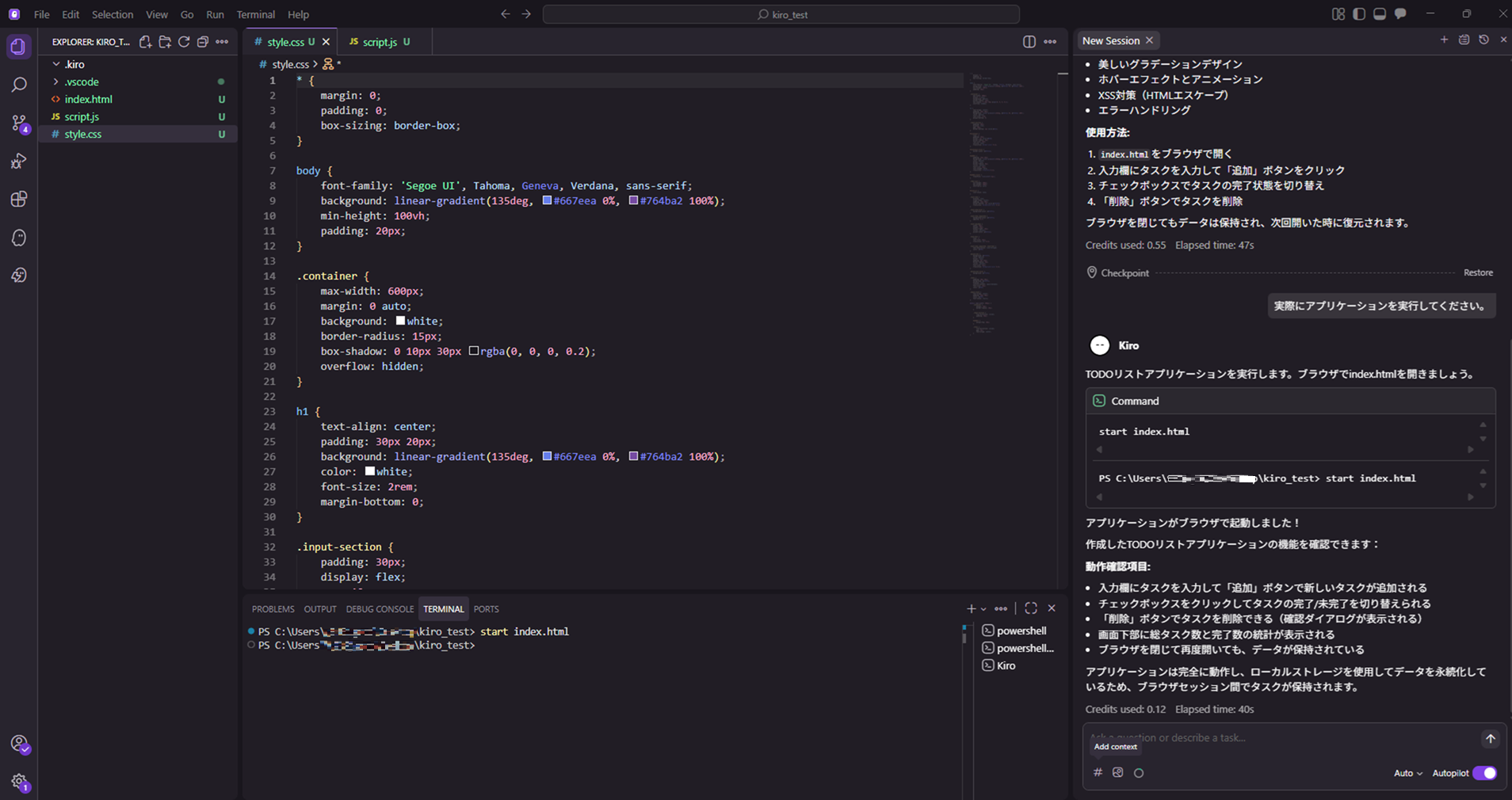
I confirmed that the ToDo list app is implemented in the browser!
The features I requested were also implemented without any issues.
Setting up Agent Steering
Now, let's actually set up Steering. If you click the Kiro icon on the left side of the screen, several major functions of AWS Kiro will be displayed.
You should be able to see "AGENT STEERING" among them.
Click "Generate Steering Docs".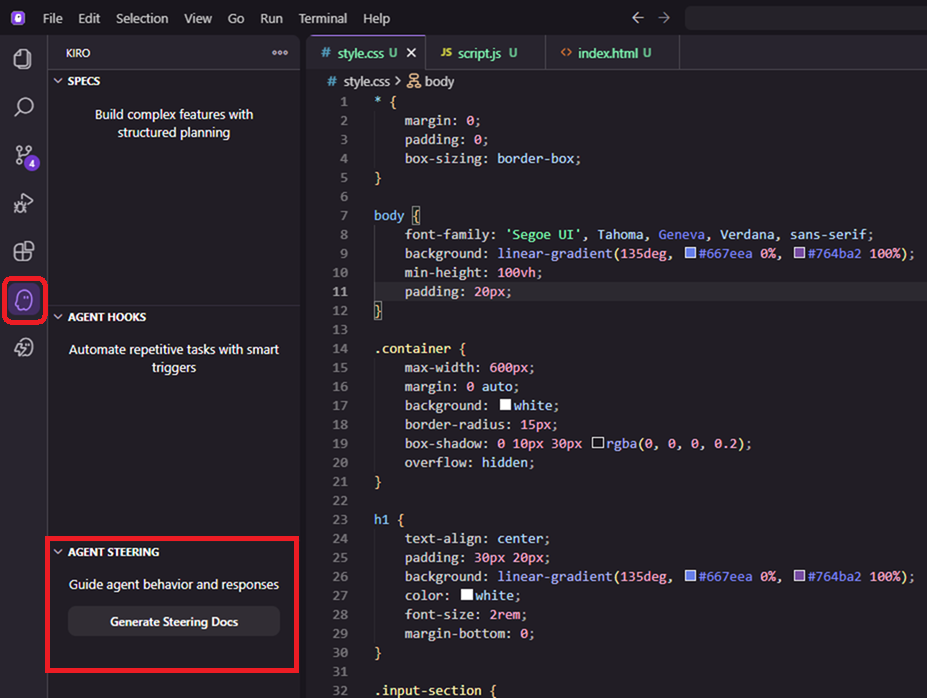
When clicked, a separate tab is created within the chat, and the workspace scan is executed.
Kiro reads the workspace and automatically creates the Product Overview (product.md), Project Structure (structure.md), and Tech Stack (tech.md).
Once the data reading is finished, you can verify that "product.md", "structure.md", and "tech.md" have been automatically created under the /steering directory.
The output was in English, which was hard for me to read, so I had it translated into Japanese.
I also want to check if it correctly interprets and implements instructions even in Japanese.
By the way, the contents look like this, and the files themselves can be freely edited.
Description of Each File
・【product.md】FileDefines the product overview of the workspace.
It defines the product's purpose, target users, key features, and business goals. This allows Kiro to understand the "why" behind technical decisions and propose solutions aligned with product goals.
・【structure.md】File
Defines the project structure of the workspace.
It outlines file organization, naming conventions, import patterns, and architectural decisions. This ensures that generated code fits seamlessly into the existing codebase.
・【tech.md】File
Defines the technical stack of the workspace.
It documents selected frameworks, libraries, development tools, and technical constraints. When Kiro proposes an implementation, the existing stack is prioritized over other options.
The Steering setup itself is now complete. However, this just read the script and defined rules based on its content. Let's add a new rule to define our unique project standards.
Adding Rules to Steering
Currently, the script created by Kiro does not contain any code explanations.This makes it difficult to understand for third parties or when the code becomes complex.
Let's define a rule in Steering to include code explanations.
It is possible to edit the file directly, but since we are here, let's ask Kiro to add the definition.
I will add "Include code explanations in scripts" as a rule to the tech stack file.
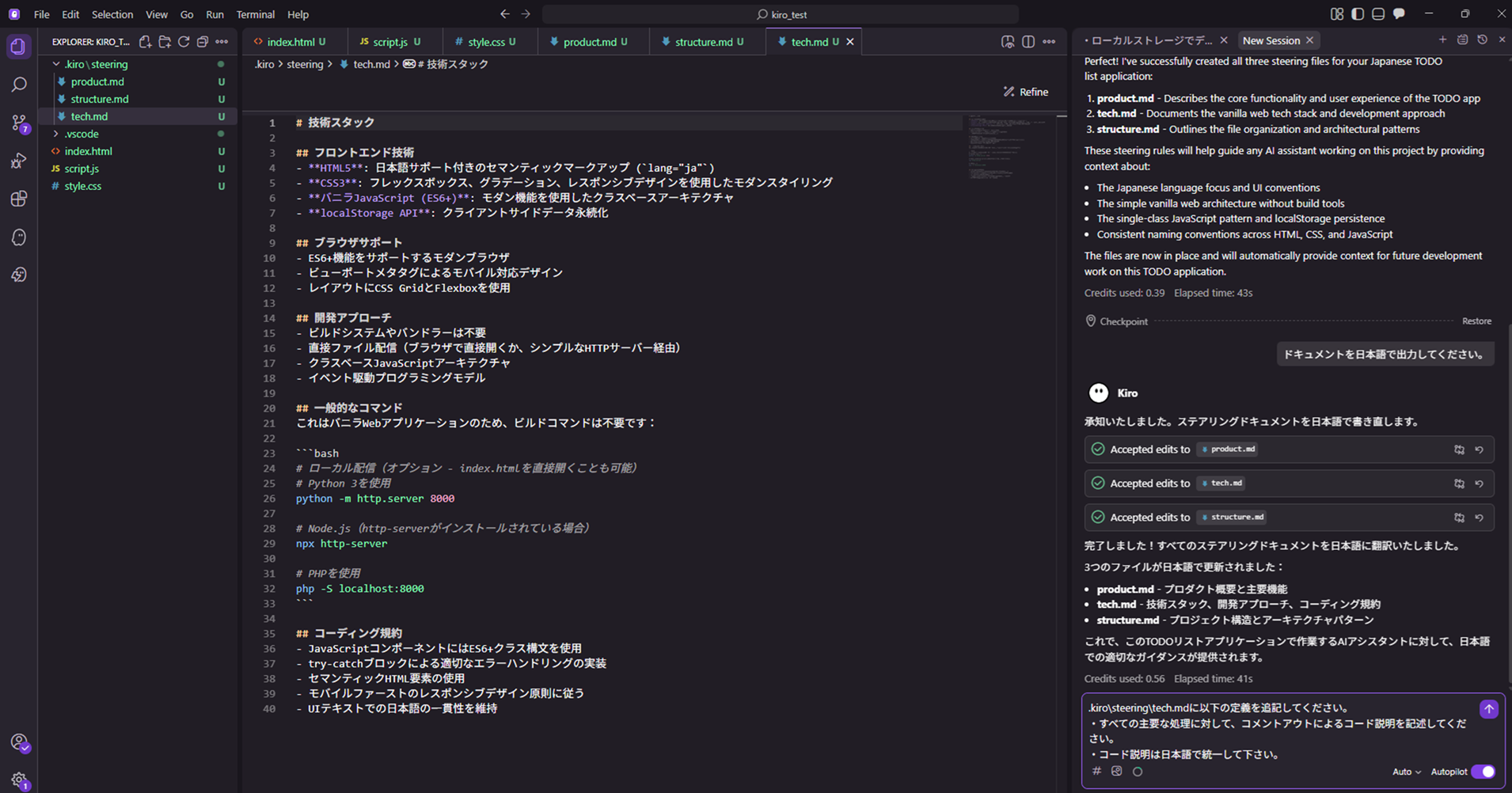
It automatically corrected it to an appropriate format and appended it to the tech stack. Now, let's see if it actually gets applied.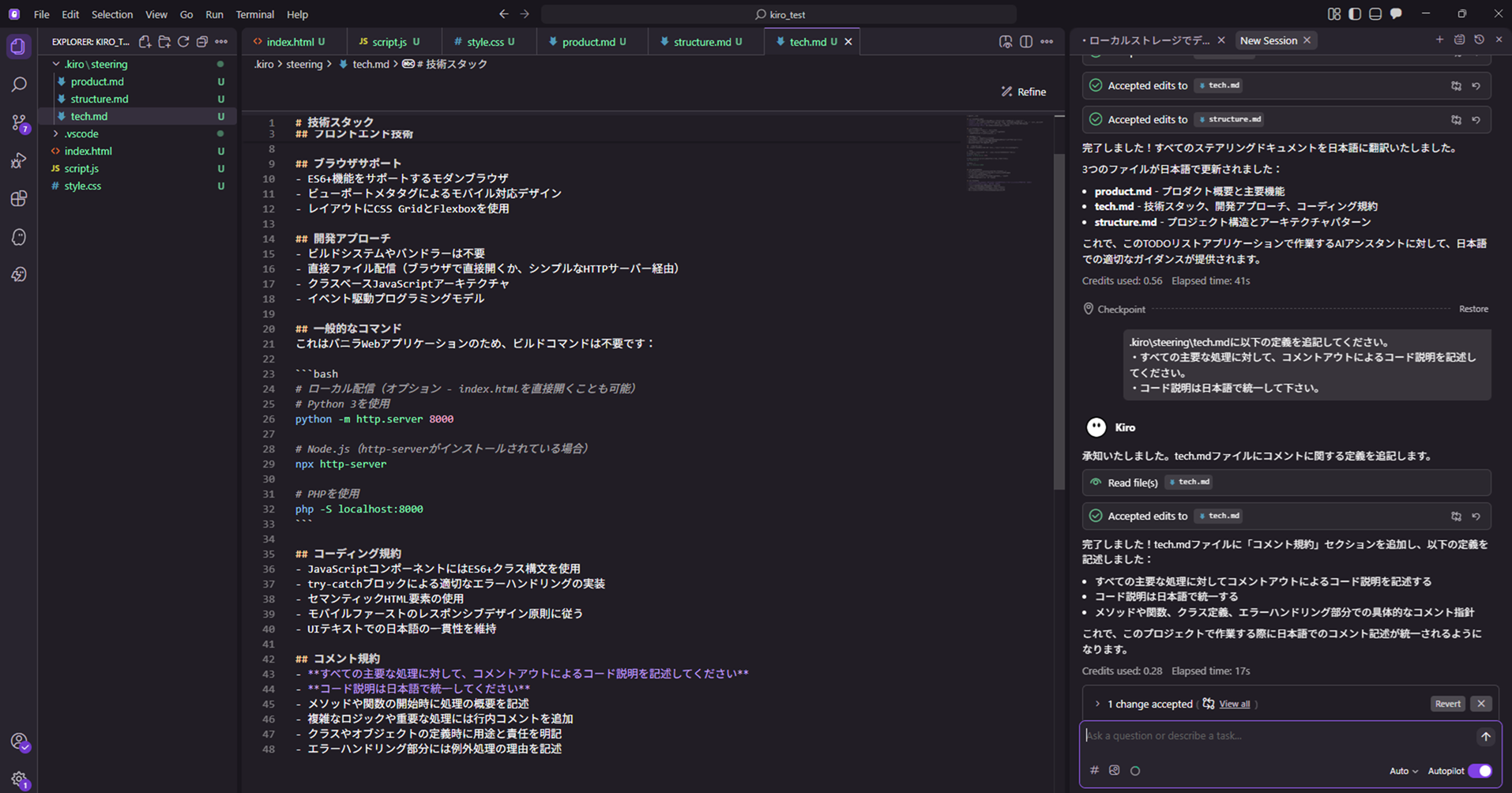
Returning to the first tab, I will try executing a script modification to add a function to view deleted tasks in the ToDo list.
Without mentioning code explanations via comments, let's verify if the Steering rule applies.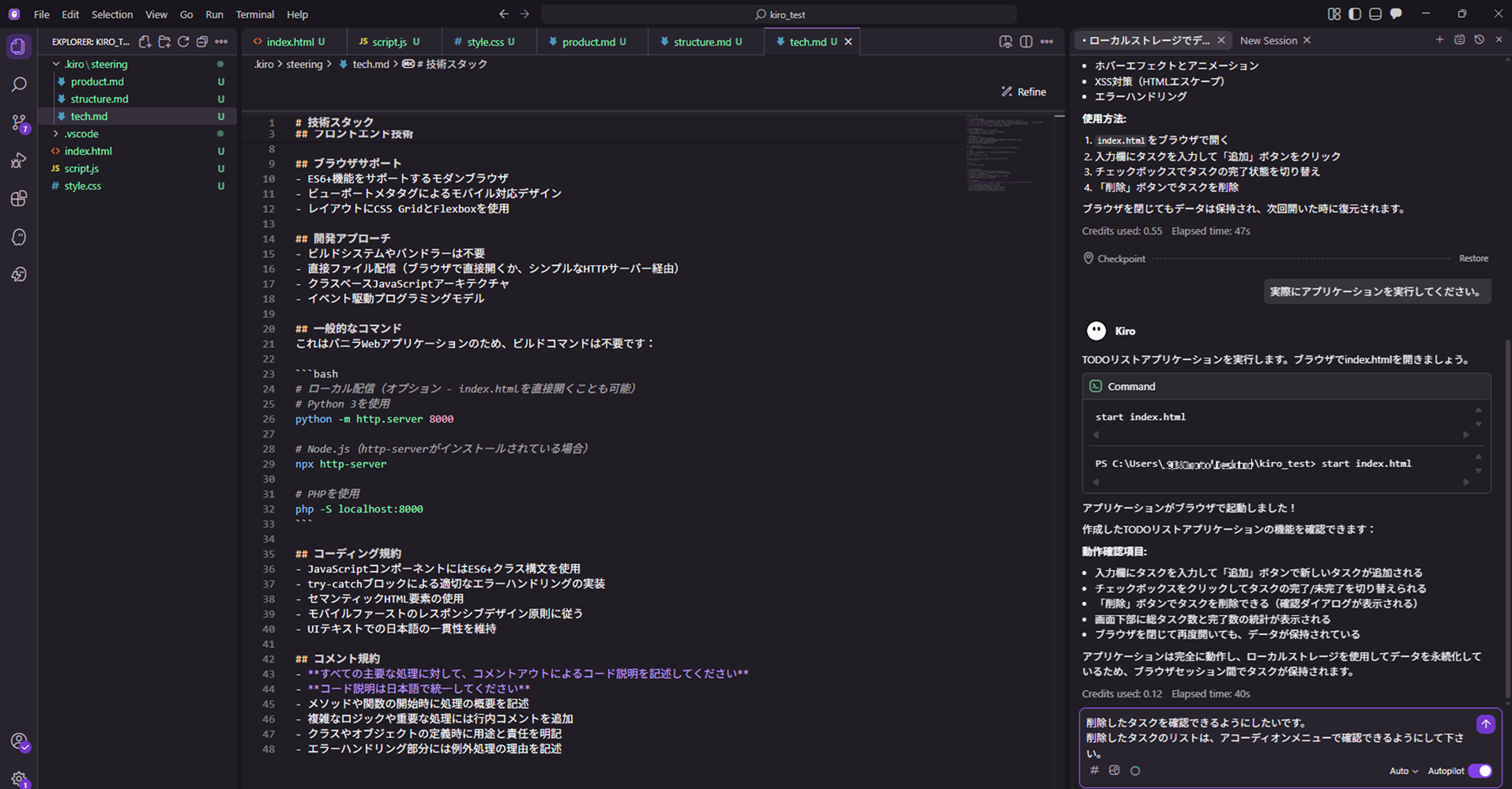
It looks like the changes have been applied. It also outputs the files that were modified.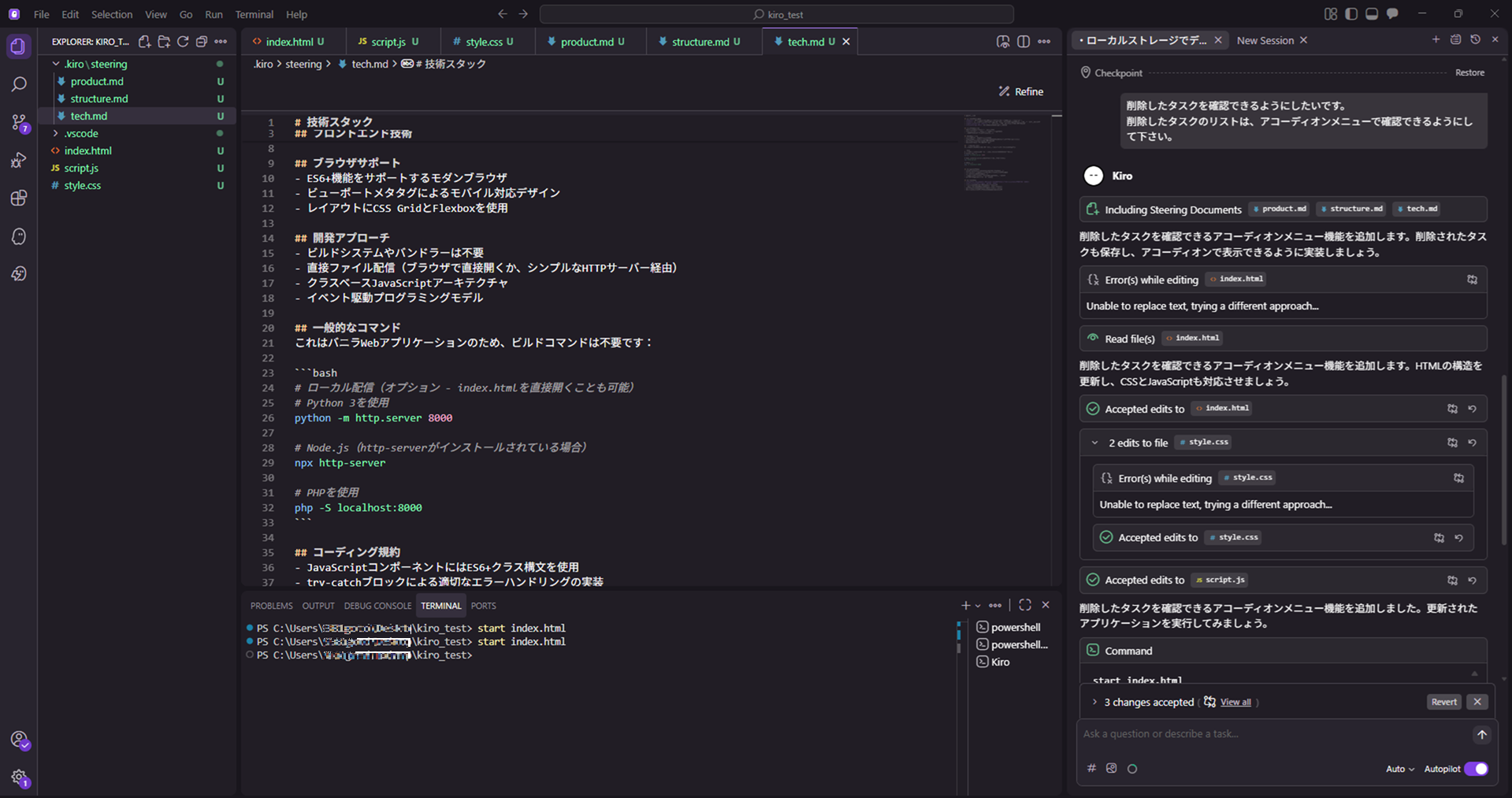
Let's check the modified script. Code explanations using comments have been appended to the script!
We confirmed that the Steering feature allows the AI to output answers that follow the project's conventions and definitions.
Now, it automatically creates them without me having to say "put in code explanations" every time.
By the way, if you want to check the changes in the modified file, you can compare it with the version before modification by clicking the left icon (the mark with arrows facing each other) from the modified file in the chat.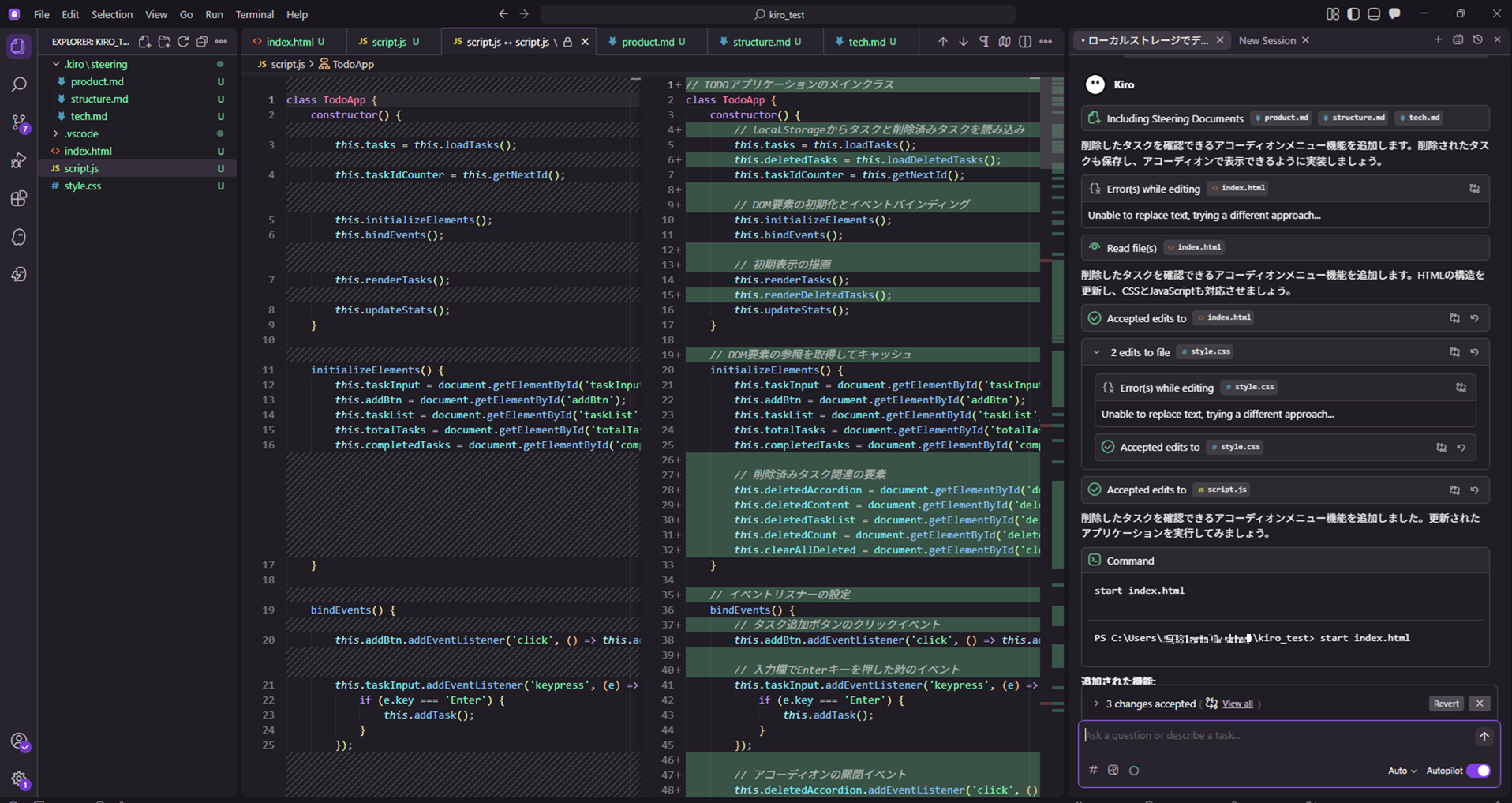
Since we changed the script, let's refresh the ToDo list and check. The deleted tasks are now visible!
The AI also took the liberty of adding other useful functions (restore, permanent delete, timestamps) that I didn't specifically mention.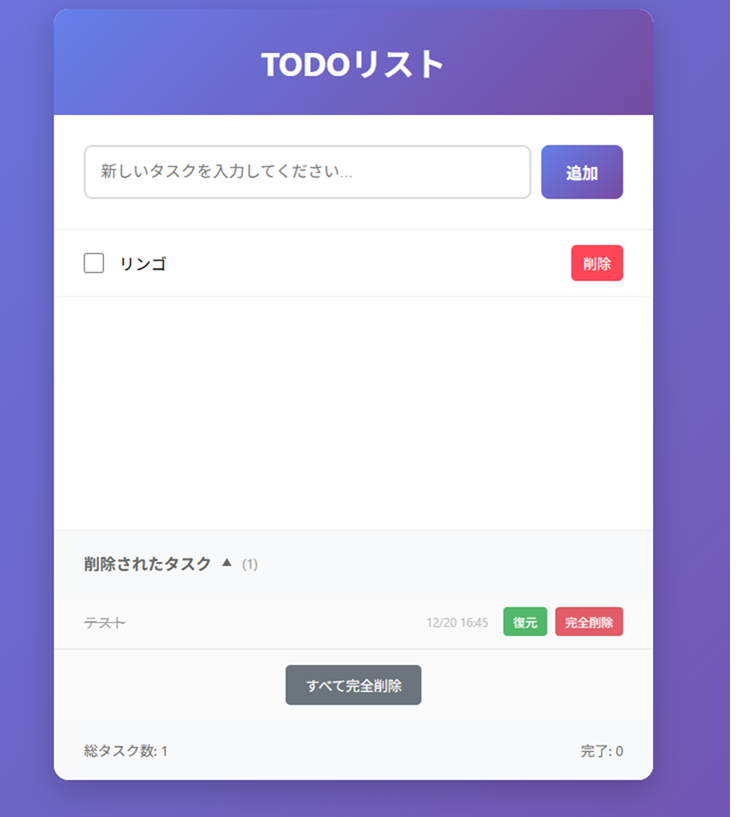
Summary
How was it? In this post, we tried setting up Steering in AWS Kiro.
In traditional AI development, it was necessary to send instructions (commands) every time in the chat to control the response language and code style.
However, by defining project rules in advance using the Steering feature, the AI can now autonomously make optimal decisions without waiting for instructions.
While it is a very convenient feature, I got the impression that you won't receive much benefit if the definition settings are neglected.
I felt that Steering settings need to be defined carefully and in detail, firmly establishing the core parts of the project.
Next time, I plan to look into best practices and anti-patterns for defining settings in Steering!
↓At QES, we will actively disseminate information about Kiro, so please take a look!
We aim to become Japan's #1 resource for Kiro! Our mission is to evangelize this technology by empowering end-users with top-tier education and technical support.
If you have requests such as "I want to know more about this service" or "AWS environment construction and migration," please feel free to contact us via our inquiry form. For inquiries regarding complex matters, our sales team will contact you directly. Also, please check out the links below!
<QES Related Solutions/Blogs>
<The AWS Security Consortium (ASC-J), in which QES participates, has released a white paper>
※Amazon Web Services, the "Powered by Amazon Web Services" logo, and other AWS trademarks used in this blog are trademarks of Amazon.com, Inc. or its affiliates in the United States and other countries.