記事公開日
Getting Started with Kiro: Integrating with IAM Identity Center


Key Points of this Article
This article provides a step-by-step guide on integrating "Kiro" (updated at AWS re:Invent) with AWS IAM Identity Center, focusing on the setup process for administrators.
- System Architecture & Prerequisites:
The configuration assumes an AWS Organization environment where IAM Identity Center is already set up, utilizing a Delegated Administrator account for deployment. - Console Configuration Steps:
Details the specific procedure to enable Kiro, select supported regions (e.g., N. Virginia, Frankfurt), and assign user subscriptions via the management console. - Client Installation & Linking:
Explains the workflow for downloading the installer from the official Kiro website and linking the application using the specific Start URL and Region information.
Hello! I'm Kikuchi from the DX Solution Division.
In this post, I will walk you through the steps to integrate "Kiro," which received major updates at AWS re:Invent, with AWS IAM Identity Center to get you started.
System Architecture
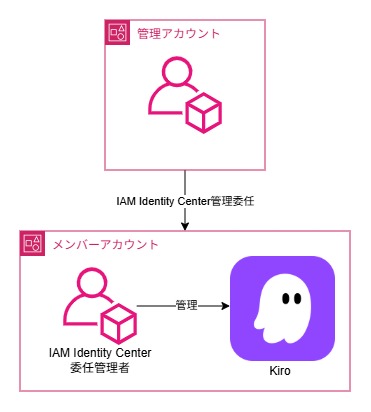
For this guide, we set up Kiro using the Delegated Administrator account for IAM Identity Center within an AWS Organization.
We assume that IAM Identity Center configuration is already completed.
Console Configuration
1. Enabling Kiro
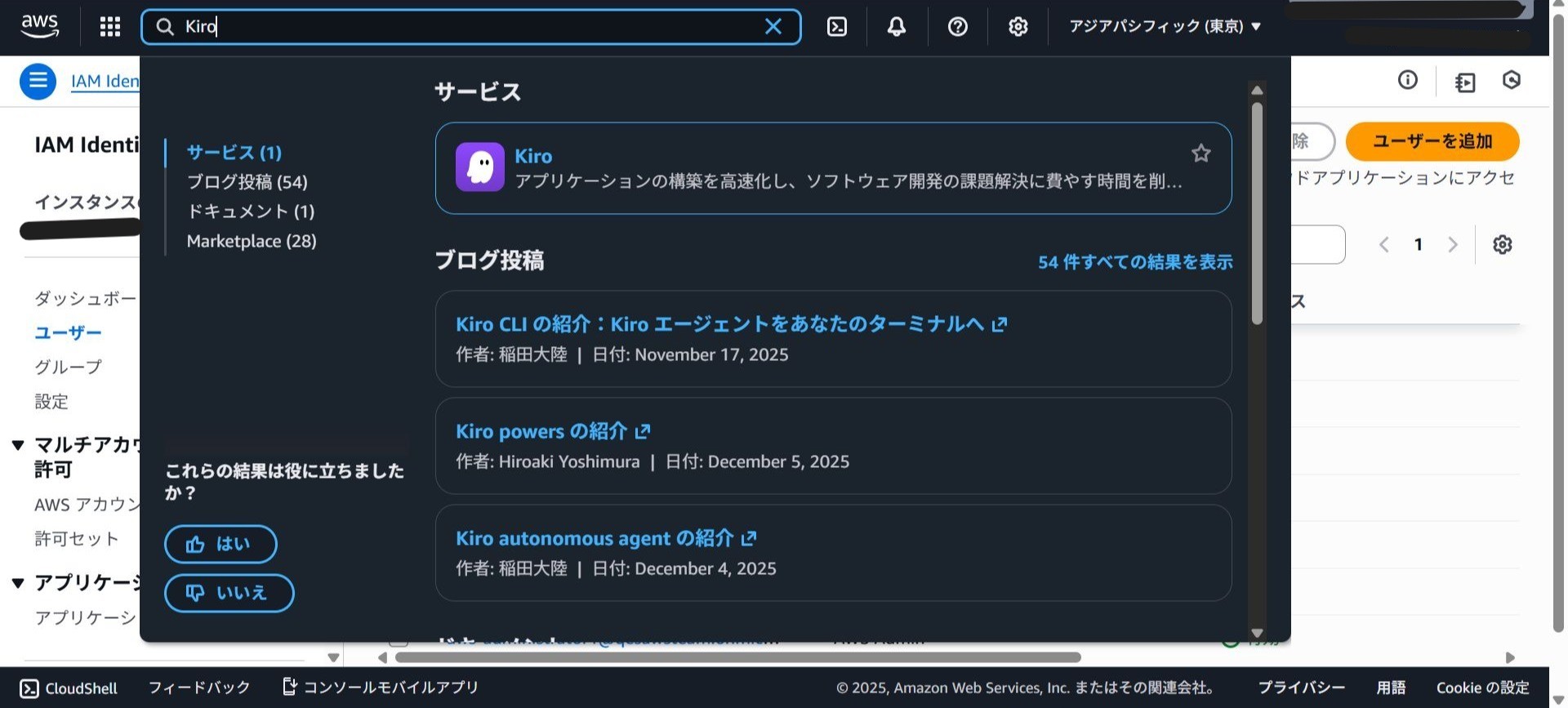
Search for Kiro in the Management Console.
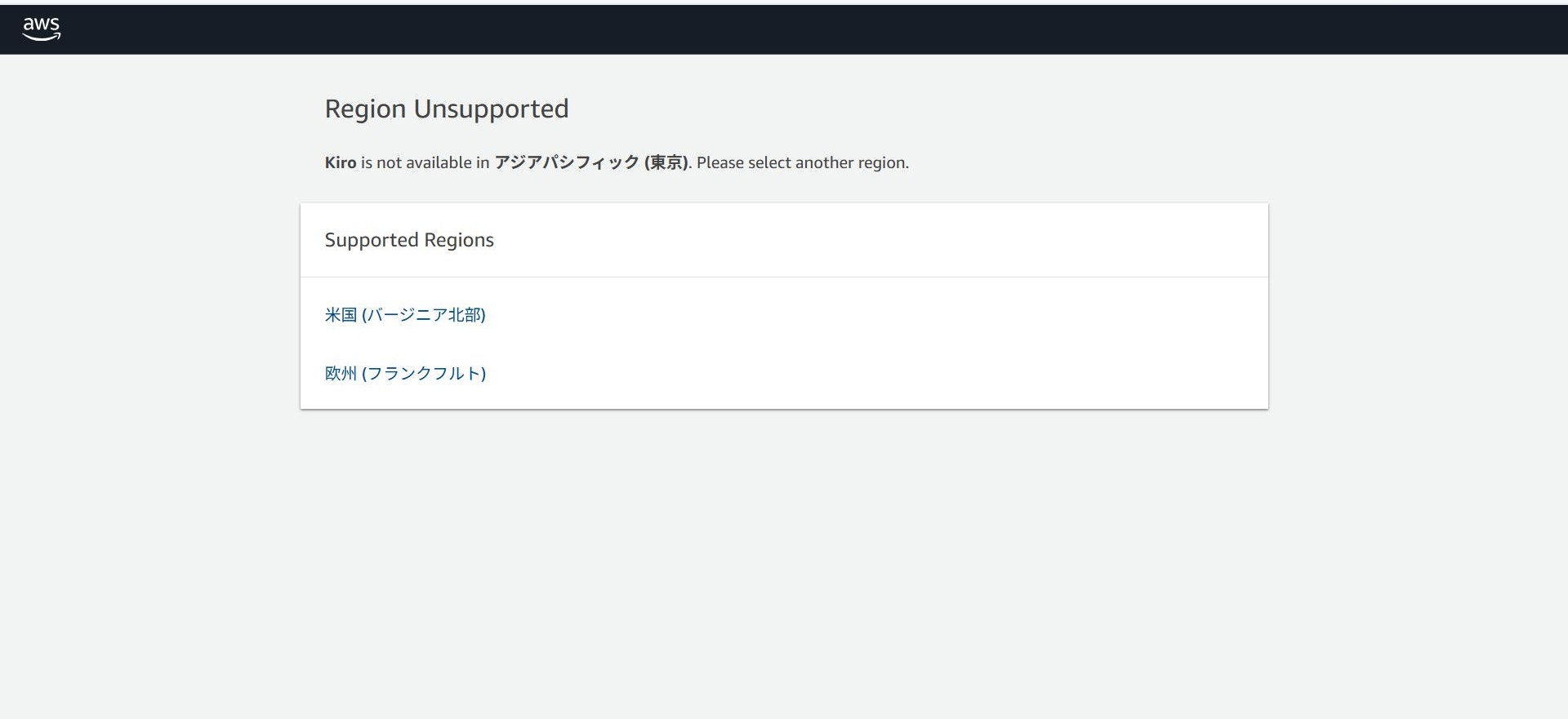
If Kiro is not yet enabled on your account, a region selection screen will appear as shown below.
Currently, Kiro cannot be configured in the Tokyo region, so please select a supported region such as US East (N. Virginia) or Europe (Frankfurt).
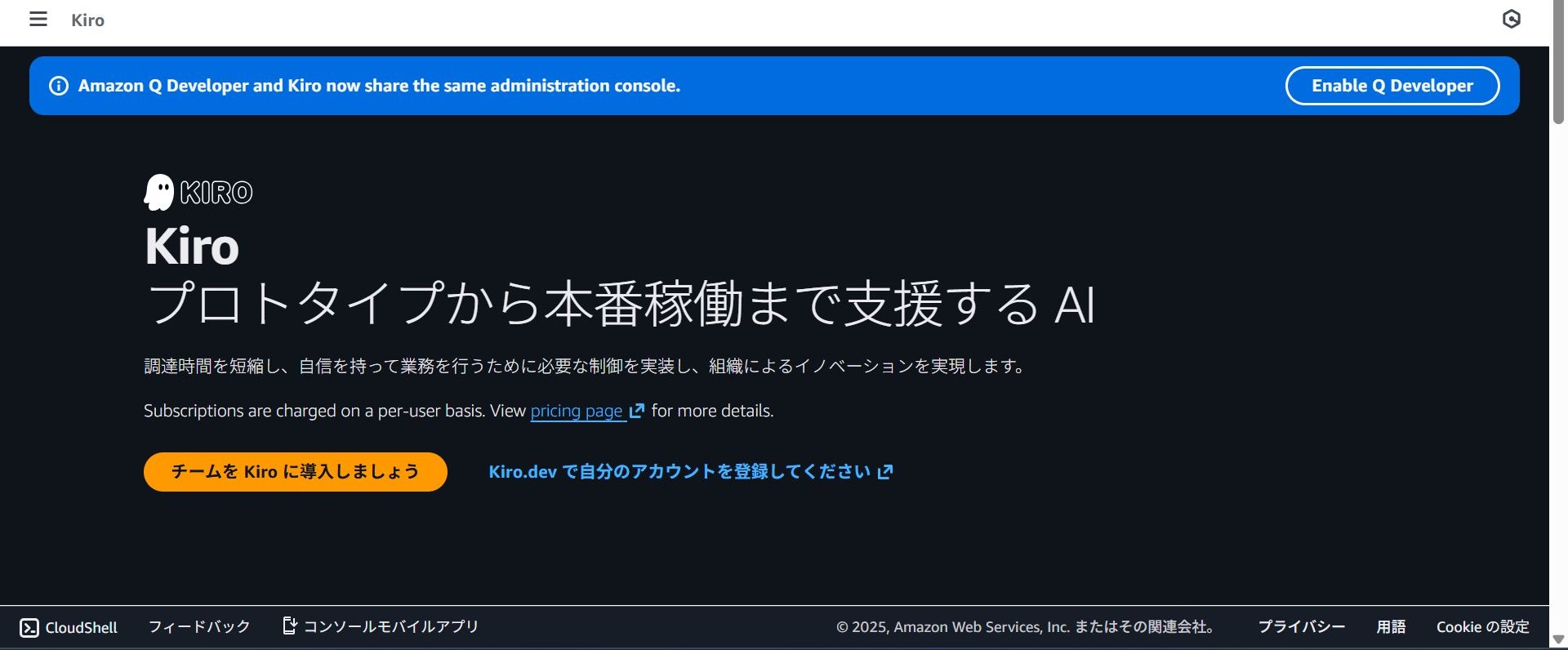
Once the Kiro console is open, select "Get started with Kiro for your team".
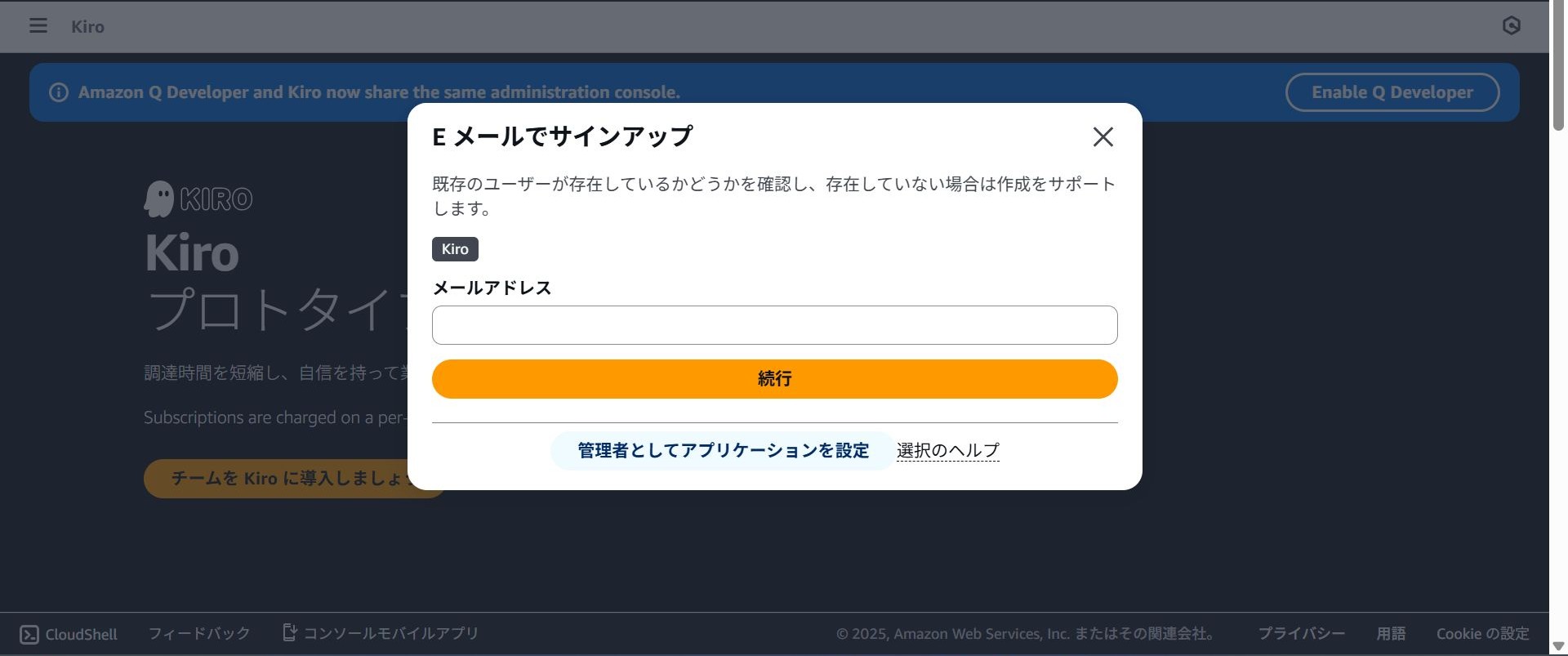
A popup like the one below will appear. Select "Set up application as an administrator".
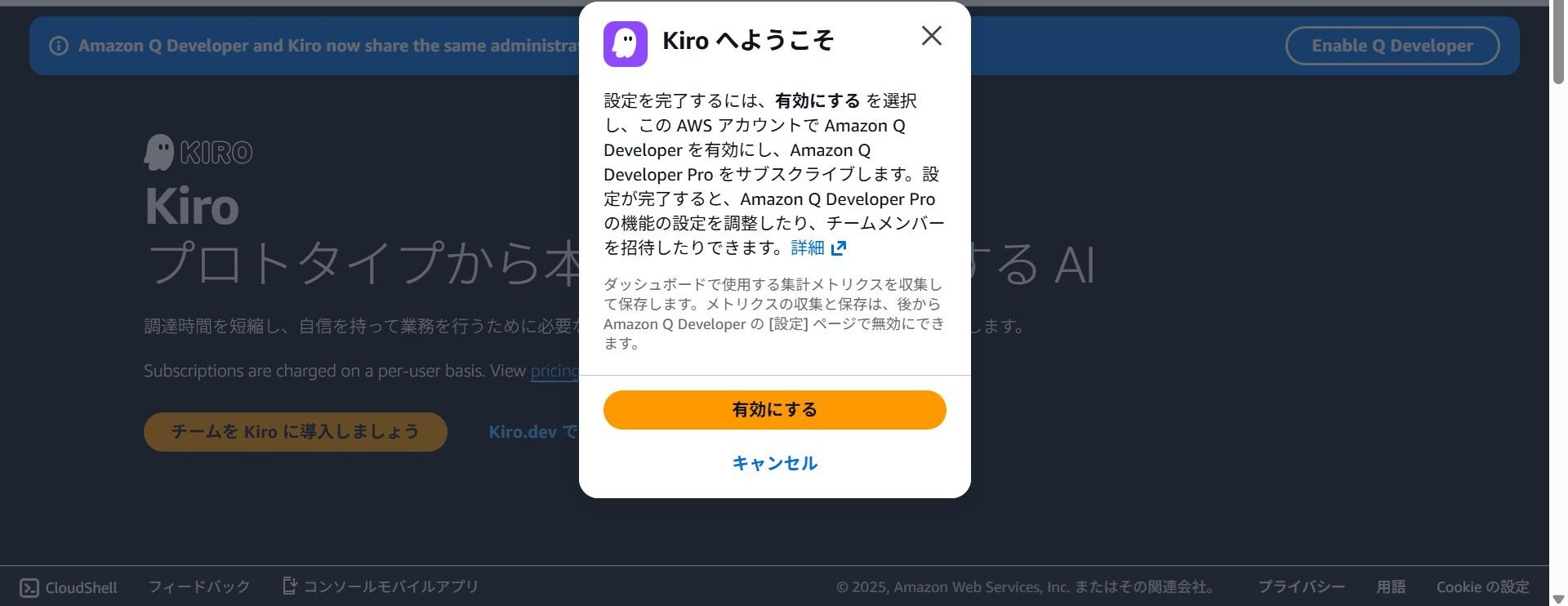
You will be asked to confirm if you want to enable Kiro. Select "Enable".
2. Adding Users
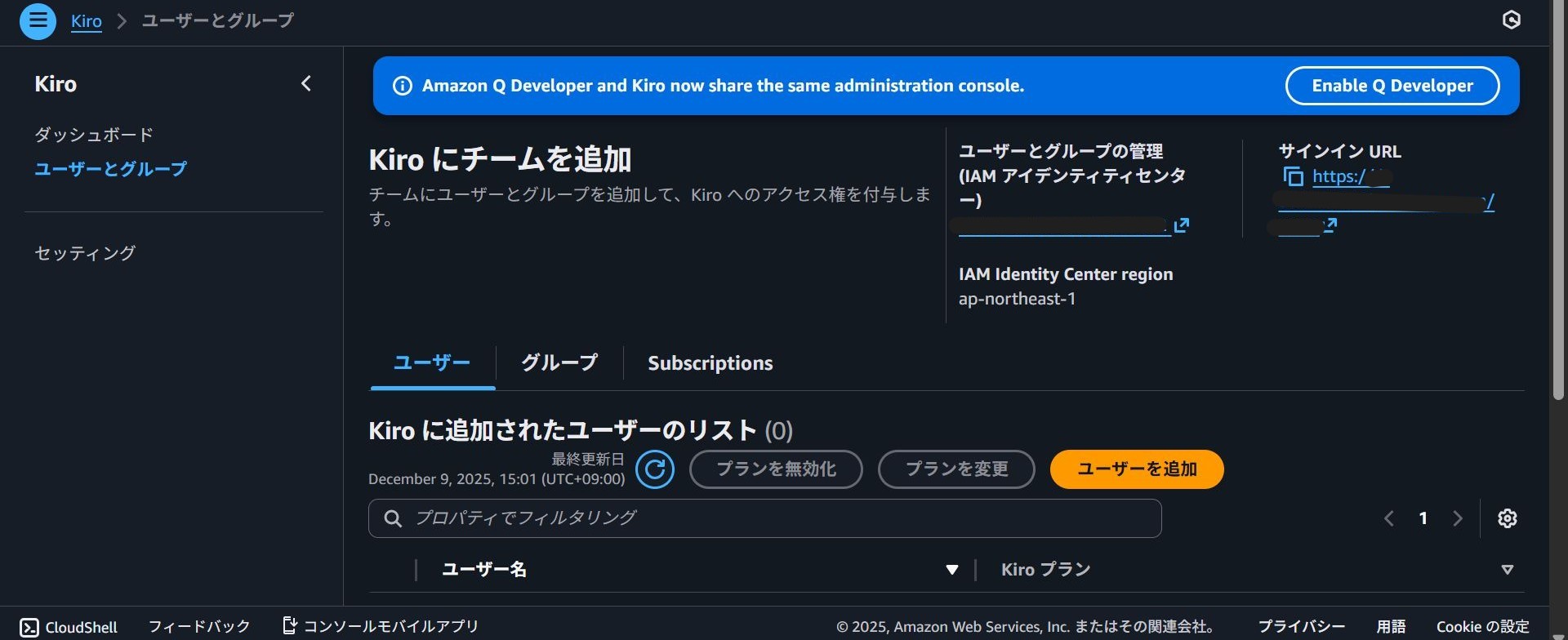
Once Kiro is enabled, the next step is to assign subscriptions to users who will be using Kiro.
Select "Add users".
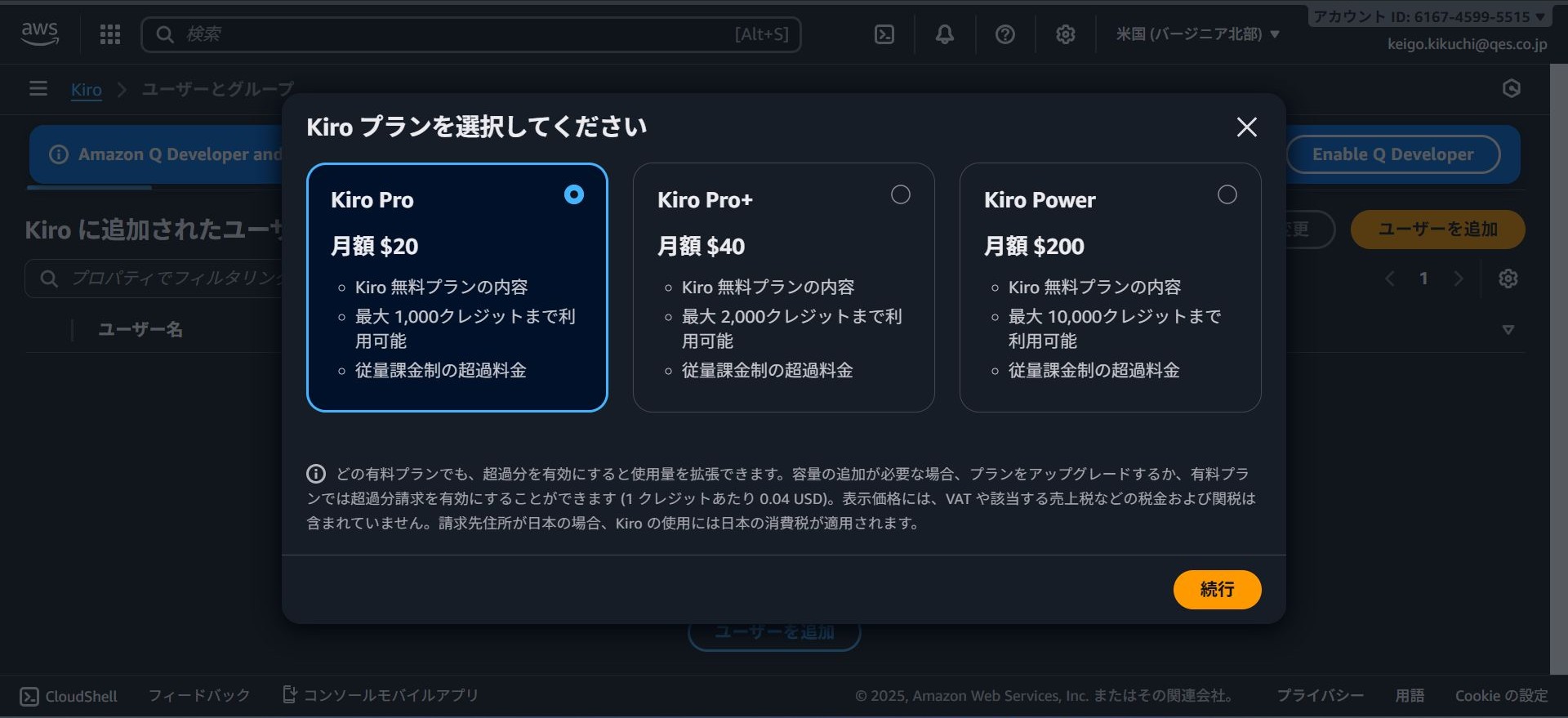
The Kiro plan selection screen will appear. Select the plan you wish to assign.
From "Search for users by display name", select and assign the users you want to add.

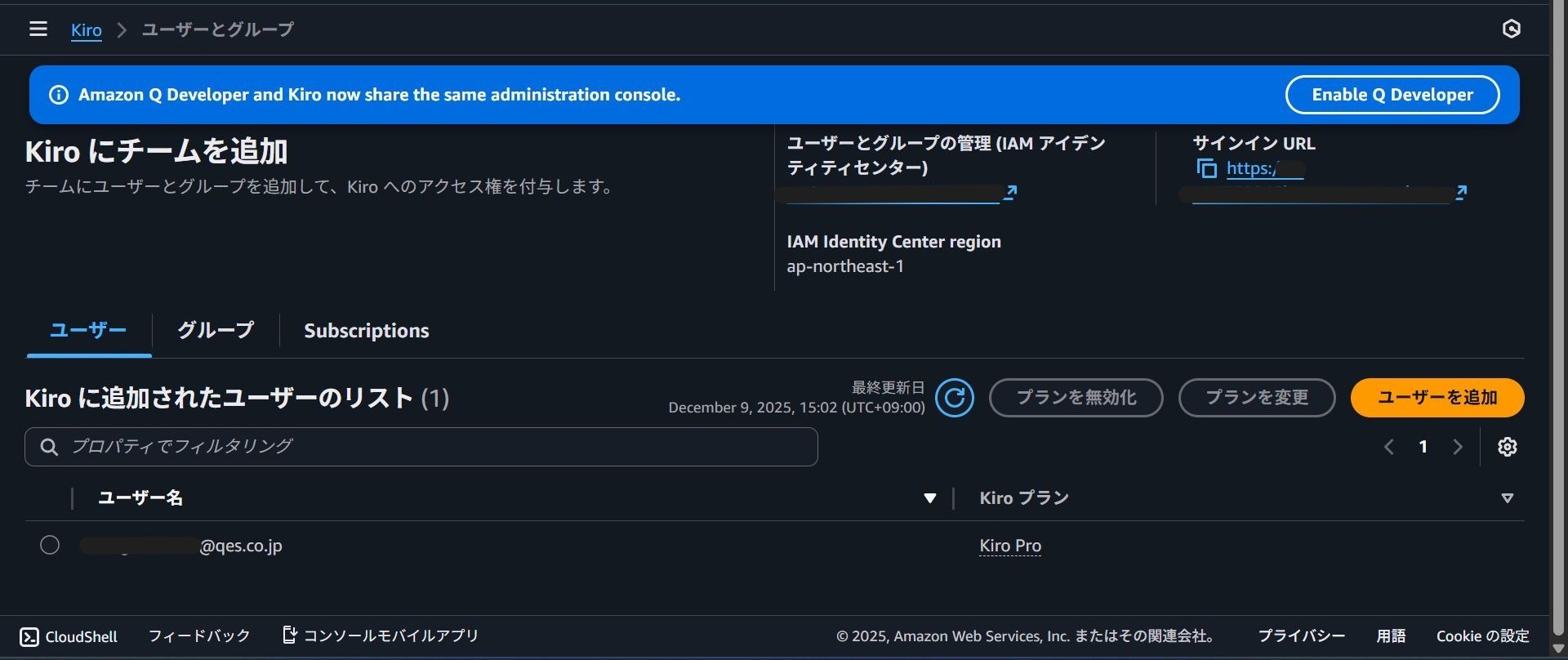
Verify that the users and plans are correct in the "List of users added to Kiro". This completes the console configuration.
Installing and Linking Kiro
Now that the user account is ready, the next step is to install the Kiro application itself and link it with the IAM Identity Center user we just configured.
1. Downloading and Installing
Access the official Kiro website below, download the installer corresponding to your OS (macOS, Windows, Linux), and install it.
2. Linking with New User
Once installation is complete, launch Kiro.
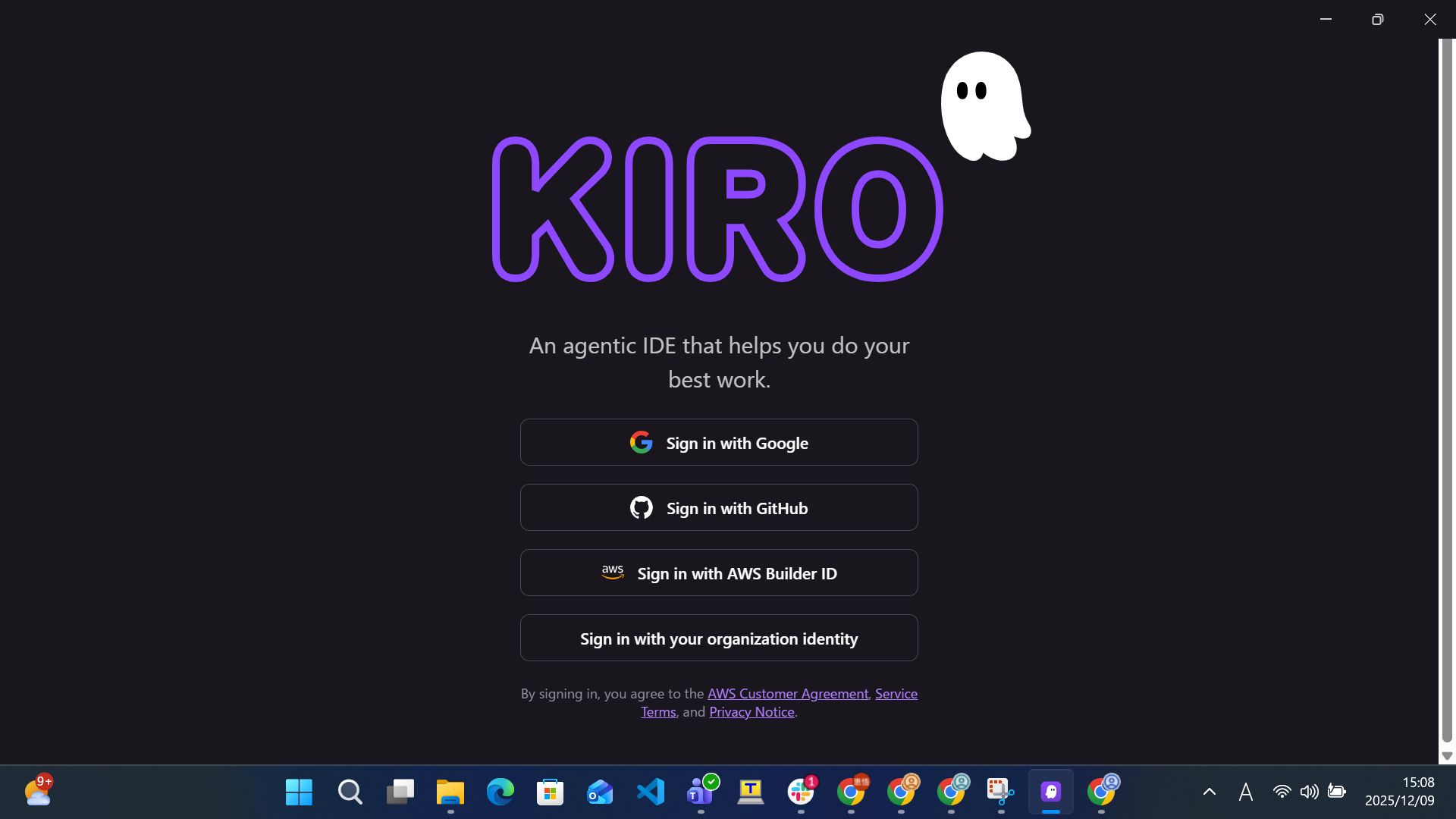
On the initial startup screen, select "Sign in with your organization identity".
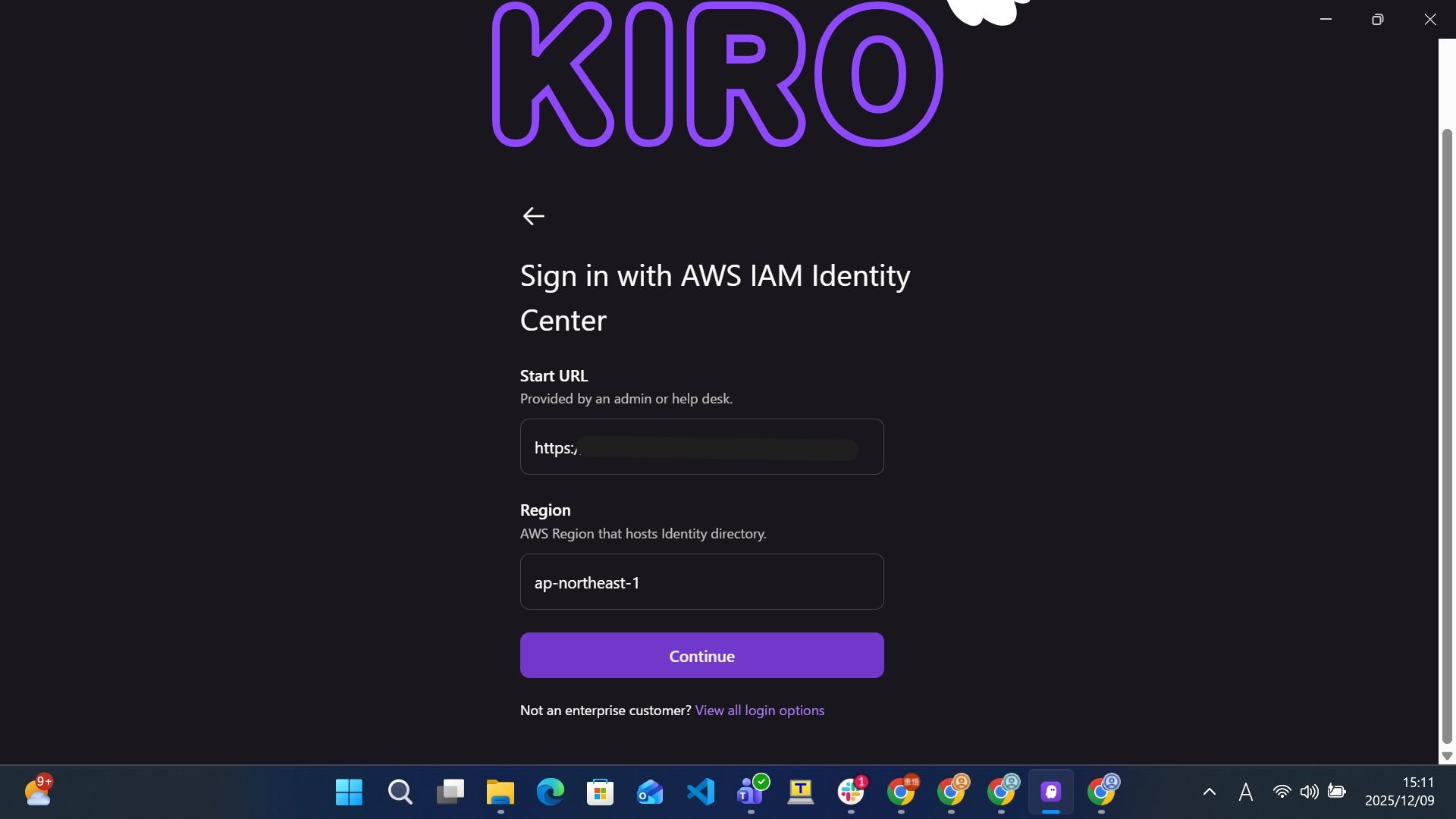
Next, you will see a screen to enter connection information.
Enter the "Start URL" and "Region" listed in the invitation email you received earlier, then click "Continue".
*The Region entered here must be the region where IAM Identity Center is enabled.
Clicking this will launch your web browser and redirect you to the AWS authentication screen.
After logging in, a screen requesting access permission for Kiro will appear. Select "Allow access".

Once allowed, the browser will return you to the Kiro application, and the linking process is complete.
Kiro setup is now finished, and you are ready to start using it.
Summary
In this post, I introduced the steps to integrate Kiro with AWS IAM Identity Center to get started.
By integrating IAM Identity Center with Kiro, you can efficiently manage users and subscriptions within your organization.
↓QES will be actively sharing information about Kiro, so please stay tuned!
We aim to become Japan's #1 resource for Kiro! Our mission is to evangelize this technology by empowering end-users with top-tier education and technical support.
If you have any requests such as "I want to know more about this service" or "AWS environment construction/migration," please feel free to contact us via our Contact Form. For complex inquiries, our sales team will contact you directly. Also, please check out the links below!
<QES Related Solutions/Blogs>
<The AWS Security Consortium, which QES participates in, has released a white paper>
※Amazon Web Services, the "Powered by Amazon Web Services" logo, and other AWS trademarks used in this blog are trademarks of Amazon.com, Inc. or its affiliates in the United States and other countries.