記事公開日
[Kiro Setup] How to Fix "Failed to connect to MCP server" Error when configuring MCP (Part 1)

Key Takeaways
This article explains the cause and solution for the "Failed to connect to MCP server" error encountered when setting up MCP (Model Context Protocol) in Kiro.
- Cause:
Connection to the MCP server fails because the "uv" package is not installed. - Solution:
Install "uv" via PowerShell and add it to the system's Path environment variable. - Verification:
After installation, restart Kiro and confirm the MCP connection. - Environment:
Windows 11 with Python 3.9.6 or later installed.
Introduction: Troubleshooting MCP Errors in Kiro
Hello! This is Matsuura from the DX Solution Sales Division.
When attempting to configure MCP (Model Context Protocol) in Kiro, you might encounter specific errors.
In this article, we will focus on the "Failed to connect to MCP server" error, explaining its cause and providing step-by-step instructions to fix it.
1. Environment
The information in this article is based on the following environment:
- OS: Windows 11
- Python: Python 3.9.6 or later installed
- Kiro: 0.8.140 (latest version at the time of writing)
2. Error Details
When setting up the "AWS Documentation MCP Server" in Kiro, the following error message appeared:
Failed to connect to MCP server "awslabs.aws-documentation-mcp-server": MCP error -32000: Connection closed
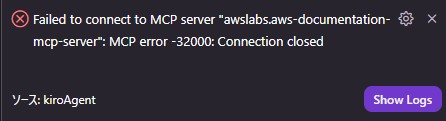
This error occurred while following the MCP configuration steps described in the article below:
![[Kiro Setup] Enabling MCP in Kiro!](https://www.qes.co.jp/dcms_media/image/Kiro_%E3%83%96%E3%83%AD%E3%82%B0%E8%A1%A8%E7%B4%99.jpg)
3. Root Cause
The cause of this error was that the uv package was not installed.
In Kiro's MCP configuration, many MCP servers are executed using the uvx command. uvx is a command included in the Python package manager "uv." If this is not installed, the connection to the MCP server will fail.
What is uv?
uv is an extremely fast Python package manager written in Rust. Compared to traditional tools like pip or pipenv, it offers:
- Fast package installation
- Efficient dependency resolution
- Direct execution of packages via the uvx command
4. Solution
Follow these steps to install uv and configure your environment variables.
Step 1: Install uv via PowerShell
Open PowerShell as an Administrator and run the following command:
powershell -ExecutionPolicy ByPass -c "irm https://astral.sh/uv/install.ps1 | iex"
This command downloads and runs the official uv installation script.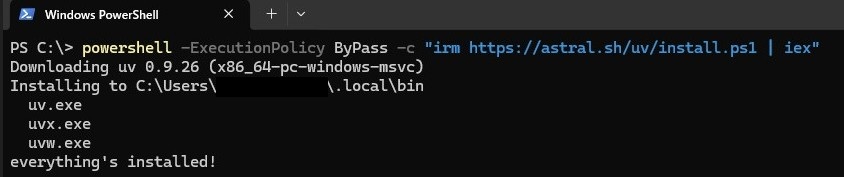
Step 2: Add to Environment Variables (Path)
Add uv to your Path so the command can be executed from anywhere.
2-1. Open System Properties
- Press Windows Key + R, type
sysdm.cpl, and hit Enter. - Click the "Advanced" tab.
- Click "Environment Variables."
2-2. Edit Path Variable
- Select "Path" under User or System variables.
- Click "Edit," then "New."
- Add the following path (replace [Username] with your actual Windows username):
C:\Users\[Username]\.local\bin
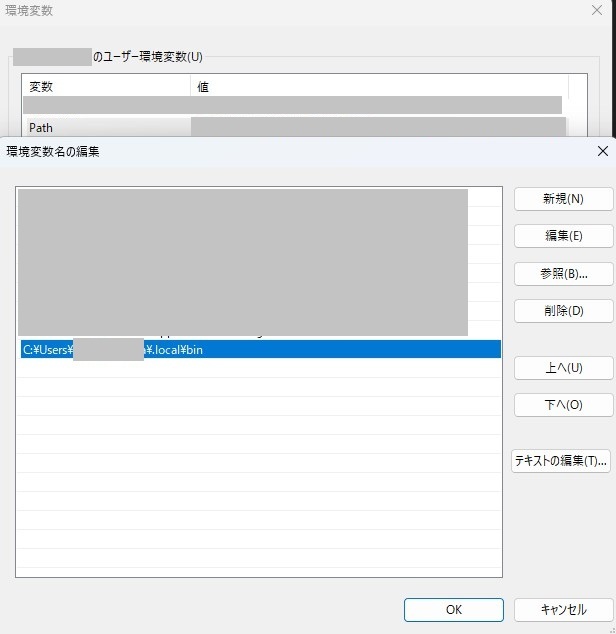
→ Click "OK" to save the settings.
Step 3: Restart PowerShell
Close all open PowerShell windows and open a new one to apply the environment variable changes.
Step 4: Verify uv Installation
In the new PowerShell window, run the following command to confirm installation:
uv --version
If the version information appears, the installation was successful.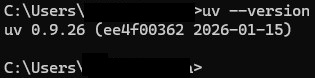
5. Verification
Once uv is installed, try connecting to the MCP in Kiro again.
Step 1: Restart Kiro
Completely exit Kiro and launch it again. This ensures the new environment variables are recognized.
Step 2: Check MCP Connection
Check the connection status in Kiro's settings or the MCP Server view. If successfully connected, the error will disappear.
Step 3: Test with MCP Tools
Try searching the AWS Documentation using the MCP tool. If it works as expected, your configuration is complete!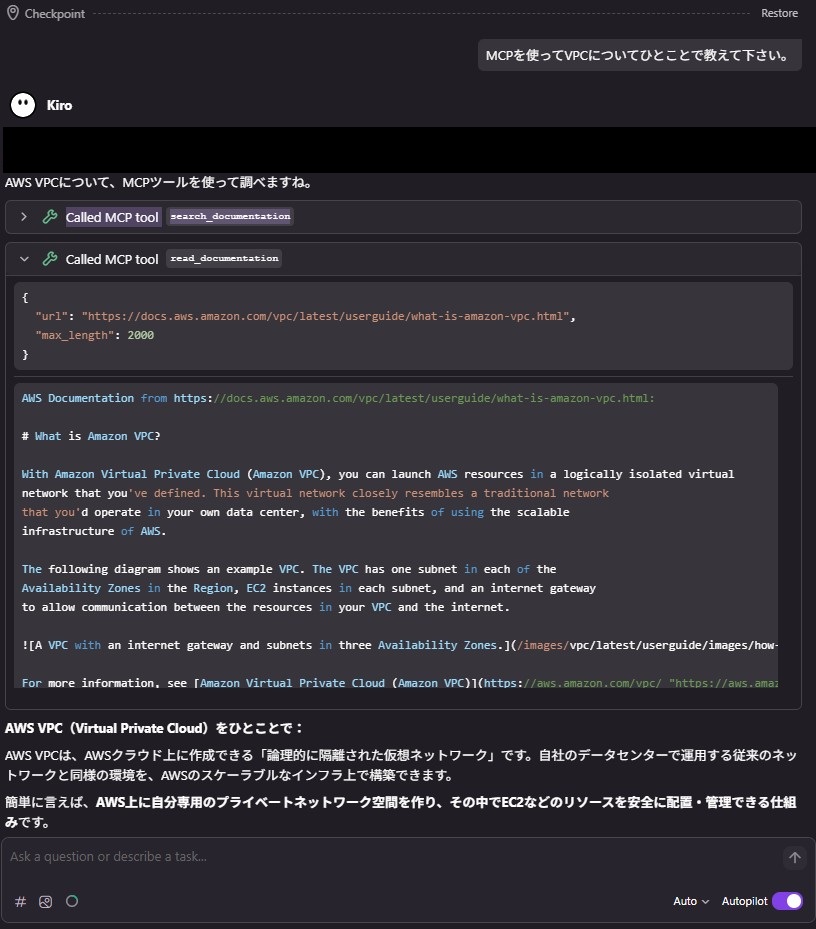
Summary: Resolving MCP Connections by Installing uv
If you encounter the "Failed to connect to MCP server" error in Kiro, a missing "uv" package is a likely culprit.
Follow these steps to resolve it:
- Install uv via PowerShell
- Add the uv path to your Environment Variables
- Restart both PowerShell and Kiro
- Verify the MCP connection
With this fix, you can fully leverage MCP servers in Kiro. Referencing external resources like official AWS documentation directly within Kiro will significantly boost your development efficiency. Give it a try!
↓Check out our other Kiro-related articles as QES continues to share the latest insights!
We aim to become Japan's #1 resource for Kiro! Our mission is to evangelize this technology by empowering end-users with top-tier education and technical support.
If you have requests like "I want to know more about this service" or need help with "AWS environment construction or migration," please feel free to contact us via our Inquiry Form. For complex inquiries, our sales representative will contact you directly. Also, please check the links below!
<QES Related Solutions/Blogs>
<The AWS Security Promotion Consortium (ASC-J), in which QES participates, has released a white paper>
* Amazon Web Services, the "Powered by Amazon Web Services" logo, and other AWS trademarks used in this blog are trademarks of Amazon.com, Inc. or its affiliates in the United States and other countries.