記事公開日
Azure Communication Services と Azure OpenAI GPT Realtime API でコールセンターのようなものを構築してみた

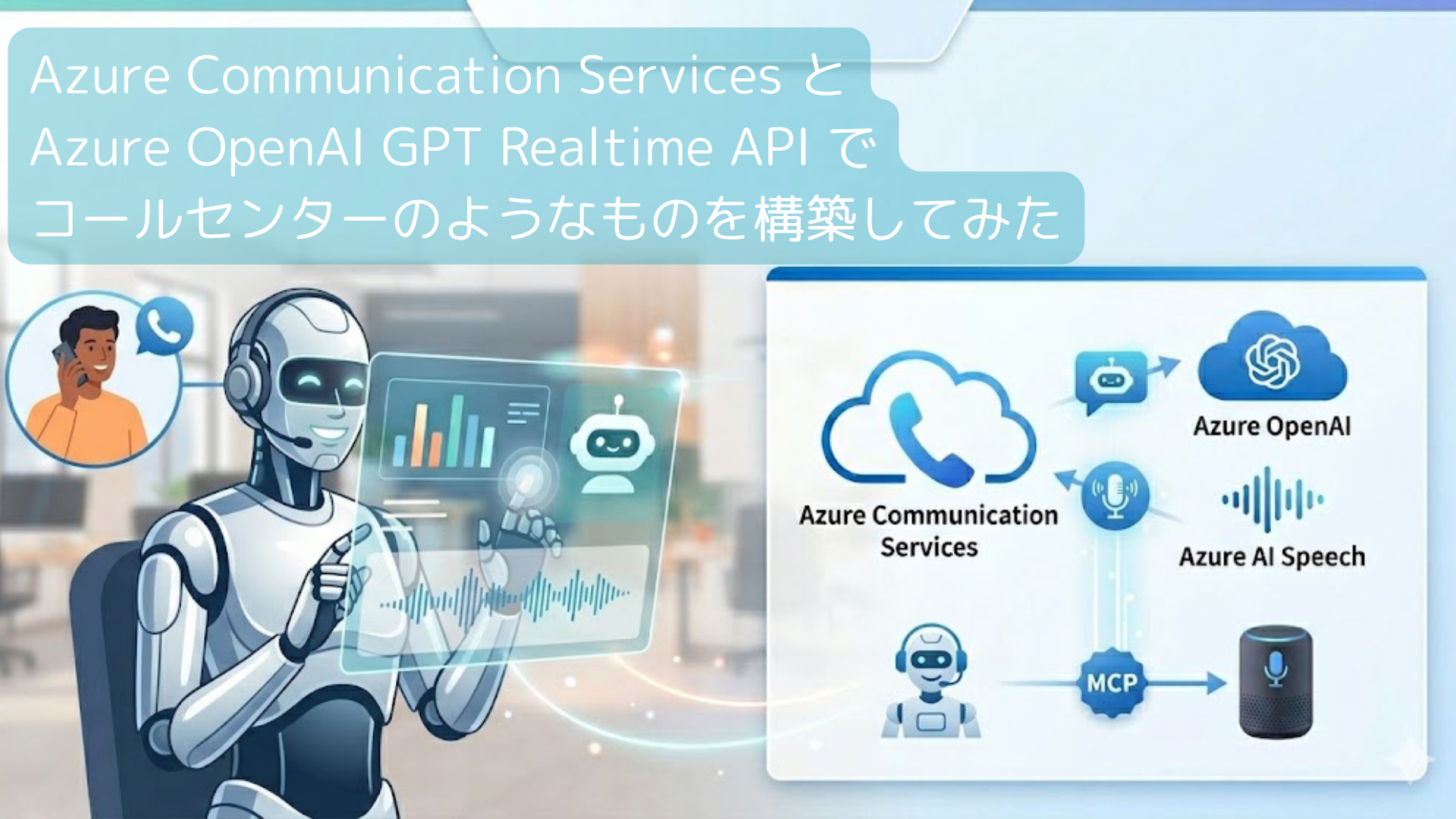
この記事のポイント
- ACS と Realtime APIの連携:Azure Communication Services を電話回線として利用し、Azure OpenAI GPT Realtime API と接続することで、低遅延で自然な音声対話が可能なAIコールセンターの基盤を構築します。
- UX向上のための実装工夫:APIの初期化待ちによる無音時間を解消するため、着信直後に固定の音声案内を再生しながらバックグラウンドで接続を行うなど、実用的なハンドリング手法を解説します。
- 外部ツールによる機能拡張:Function Calling や MCP(Model Context Protocol)サーバーを活用し、顧客情報の照会や外部データの取得といった、単なる雑談を超えた高度な業務対応を可能にする方法を紹介します。
はじめに
こんにちは。最近、AIの進化により、カスタマーサポートのあり方が大きく変わろうとしています。 今回は、Azure Communication Services (以下、ACS) と、Azure OpenAI GPT Realtime API(以下、Realtime API) を組み合わせ、低遅延で自然な応答が可能な「AIコールセンター」のようなものを構築してみました。事前準備
Azure上で AIコールセンターを構築する場合、最初の入り口となるのが ACS です。 ACSは、音声、ビデオ、SMSなどの通信機能をアプリケーションに統合できるマネージドサービスですが、今回は「電話回線」として利用し、ユーザーからの着信に応答します。1. ACSリソースの作成
まずは、Azure ポータルで ACS リソースを作成します。
➡ Azure Communication Services リソースの作成 (Microsoft Learn)
2. 電話番号の取得
電話を受けるためには、電話番号の取得が必要となります。日本の電話番号を取得するためには、証明書の提出も必要となります。
➡ 電話番号を取得する
※電話番号を取得するには、「有料の Azure サブスクリプション」が必要となります。試用アカウントや 無料クレジットで電話番号を取得することはできません。
(参考:Azure Communication Services での電話番号の種類)
電話番号が取得できると、Phone numbers に電話番号やステータスが表示されます。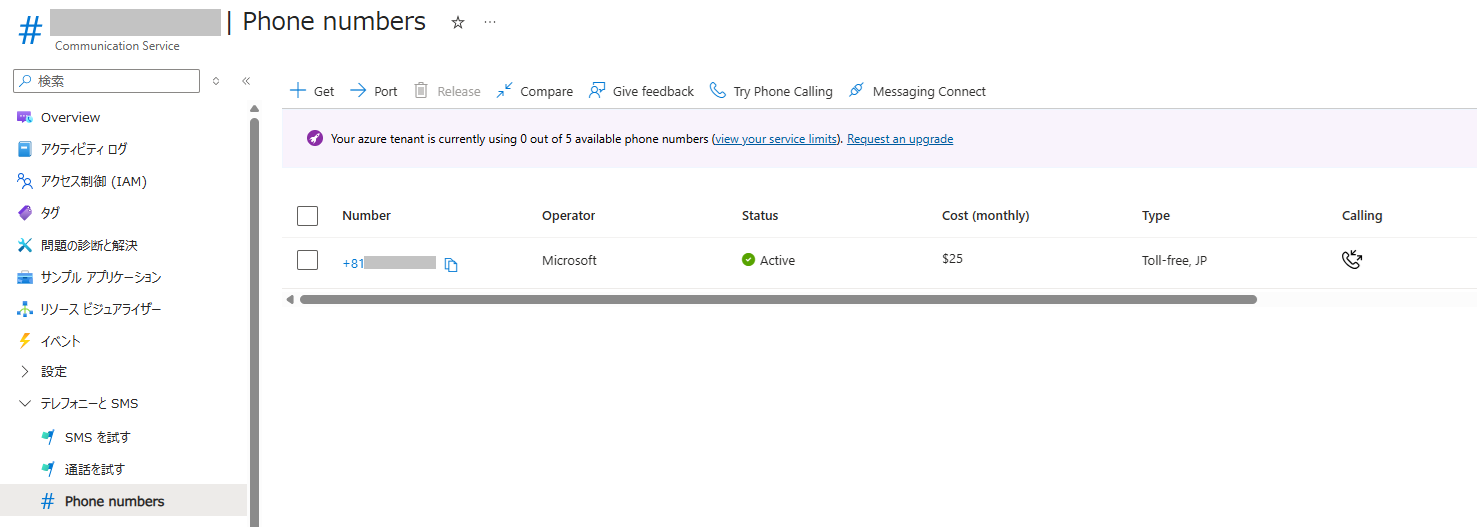
着信処理の実装
ACS にかかってきた電話をプログラムで制御するには、Event Grid を介して着信イベントをWebHook に飛ばす設定が必要となります。1. WebHookエンドポイントの実装
まずは、ACSからの通知を受け取るための API エンドポイントを作成します。
ここでは、エンドポイントを /api/incoming-call とし、以下のイベントを処理します。
| イベント | 処理内容 |
|---|---|
| Microsoft.EventGrid.SubscriptionValidationEvent | サブスクリプション登録時に発生します。[validationResponse] を正しく返すことで、ACS側が登録完了を認識します。この処理ができていないと、ACSとの連携が設定できません。 |
| Microsoft.Communication.IncomingCall | 着信時に発生します。会話するための初期設定を実装します。 |
@router.post("/api/incoming-call")
async def incoming_call(request: Request):
    events = await request.json()

    # Event Grid サブスクリプション検証ハンドシェイク
    if isinstance(events, list) and events and events[0].get("eventType") == "Microsoft.EventGrid.SubscriptionValidationEvent":
        print("[EventGrid] Subscription validation")
        return JSONResponse({"validationResponse": events[0]["data"]["validationCode"]})

    for event in (events if isinstance(events, list) else []):
        if event.get("eventType") == "Microsoft.Communication.IncomingCall":
            await _handle_incoming_call(event["data"])

    return JSONResponse({}, status_code=200)
2. 着信時の処理
[Microsoft.Communication.IncomingCall] イベント時に処理される着信時の初期処理になります。
incomingCallContext を使用して、着信に応答します。WebSocket で処理するための設定や、後続のイベントを処理するためのコールバック用のエンドポイント(ここでは、/api/callbacks)を設定しています。
async def _handle_incoming_call(data: dict):
    incoming_call_context = data.get("incomingCallContext")
    caller = data.get("from", {}).get("rawId", "unknown")
    print(f"[IncomingCall] From: {caller}")

    base_url = os.environ["APP_BASE_URL"]
    callback_url = f"{base_url}/api/callbacks"
    session_id = str(uuid.uuid4())
    ws_url = base_url.replace("https://", "wss://").replace("http://", "ws://") + f"/ws?sid={session_id}"

    media_streaming = MediaStreamingOptions(
        transport_url=ws_url,
        transport_type="websocket",
        content_type="audio",
        audio_channel_type="unmixed",
        enable_bidirectional=True,   # 双方向 (送受信)
        audio_format="Pcm16KMono",   # 16kHz 16bit mono
    )

    result = acs_client.answer_call(
        incoming_call_context=incoming_call_context,
        callback_url=callback_url,
        media_streaming=media_streaming,
        cognitive_services_endpoint=os.getenv("COGNITIVE_SERVICES_ENDPOINT"),
    )
    call_connection_id = result.call_connection_id
    # CallConnected 時に session_id を引けるよう記録
    state.call_session_map[call_connection_id] = session_id
    print(f"[IncomingCall] Answered. ConnectionId: {call_connection_id} sid: {session_id}")
3. イベント処理
コールバック用エンドポイントとイベント毎の処理を実装します。
ここでは、以下のイベントを処理しています。※ログ出力のみの実装もありますが、、、
| イベント | 処理内容 |
|---|---|
| Microsoft.Communication.CallConnected | 着信接続が完了時の処理を実装 ここでは、Realtime API の初期処理をバックグラウンドで実行し、接続時の音声案内を開始しています。 |
| Microsoft.Communication.CallDisconnected | 切断時の処理を実行 |
| Microsoft.Communication.PlayCompleted | 再生完了時の処理を実行 ここでは、Azure Speech による接続時案内の完了を識別しています。 |
| Microsoft.Communication.PlayFailed | 再生失敗時の処理を実行 |
| Microsoft.Communication.MediaStreamingStarted | メディアストリーミング開始時の処理を実装 ここから、本格的に Realtime API での会話が始まります。 |
| Microsoft.Communication.MediaStreamingFailed | メディアストリーミング失敗時の処理を実装 |
@router.post("/api/callbacks")
async def callbacks(request: Request):
    events = await request.json()

    for event in (events if isinstance(events, list) else [events]):
        await _handle_call_event(event)

    return JSONResponse({}, status_code=200)

async def _handle_call_event(event: dict):
    event_type = event.get("type") or event.get("eventType", "")
    call_connection_id = event.get("data", {}).get("callConnectionId", "")

    print(f"[CallEvent] {event_type} | {call_connection_id}")

    if event_type == "Microsoft.Communication.CallConnected":
        # OpenAI 接続を挨拶と並行してバックグラウンドで開始
        _prewarm_openai(call_connection_id)
        # 固定挨拶を再生。完了後に PlayCompleted でストリーミングを開始する
        await _play_greeting(call_connection_id)

    elif event_type == "Microsoft.Communication.PlayCompleted":
        # 挨拶再生完了 → メディアストリーミング開始
        print("[Play] Greeting completed")
        await _start_media_streaming(call_connection_id)

    elif event_type == "Microsoft.Communication.PlayFailed":
        print(f"[Play] Failed: {event.get('data', {}).get('resultInformation')}")
        # 挨拶失敗してもストリーミングは開始する
        await _start_media_streaming(call_connection_id)

    elif event_type == "Microsoft.Communication.MediaStreamingStarted":
        print("[MediaStreaming] Started")

    elif event_type == "Microsoft.Communication.MediaStreamingFailed":
        print(f"[MediaStreaming] Failed: {event.get('data', {}).get('resultInformation')}")

    elif event_type == "Microsoft.Communication.CallDisconnected":
        print("[Call] Disconnected")
4. 着信時の挨拶
Realtime API の初期化には数秒の時間がかかるようです。これを待たないとその後の会話が成立しませんが、ユーザーからするとちょっとした謎の待ち時間が発生してしまいます。これを埋めるために、Realtime API の初期化をバックグラウンドで実行しつつ、固定の音声案内を出せるように実装してみました。
この実装をすることで、着信直後にすぐに音声案内があり、音声案内の直後には Realtime API による音声応答が開始されるため、体感的な待ち時間は解消されます。
# ── 固定挨拶を即座に再生 ───────────────────────────────────
# 着信直後の無音時間をなくすため CallConnected 直後に TTS で再生する
# GREETING_TEXT 環境変数で文言を変更可能
async def _play_greeting(call_connection_id: str):
    try:
        greeting_text = os.getenv(
            "GREETING_TEXT",
            "お電話ありがとうございます。ただいま、AIサポート員におつなぎいたしますので、少しお待ちください。",
        )
        voice_name = os.getenv("GREETING_VOICE", "ja-JP-NanamiNeural")

        call_connection = acs_client.get_call_connection(call_connection_id)
        call_connection.play_media(
            play_source=TextSource(text=greeting_text, voice_name=voice_name),
            play_to=[],  # 空リスト = 全参加者へ再生
            operation_context="greeting",
        )
        print(f"[Play] Greeting triggered: {greeting_text}")

    except Exception as e:
        print(f"[Play] Error: {e}")
Realtime API部の実装
Realtime APIの処理を実装します。少し処理が長くなるため、主要ポイントのみ説明します。1. Realtime APIとの接続
接続処理の実装例です。 async def _connect(self, client: AsyncAzureOpenAI, deployment: str) -> None:
try:
async with client.beta.realtime.connect(model=deployment) as conn:
print(f"[AzureOpenAI] Connected (deployment: {deployment})")
self._conn = conn
# 音声送信ループをバックグラウンドで起動
send_task = asyncio.create_task(self._send_loop(conn))
# イベント受信ループ
async for event in conn:
await self._handle_event(event)
send_task.cancel()
except asyncio.CancelledError:
raise # _run のリトライループに伝播させる
except OSError:
raise # _run のリトライループに伝播させる
except Exception as e:
print(f"[AzureOpenAI] _connect error: {e}")
self._ready.set() # タイムアウト回避
raise
2. イベント処理
イベント処理を実装します。セッション開始時に、AIからの会話が開始するように初回挨拶の指示を追加しています。 # ── 初回挨拶生成 ─────────────────────────────────────────
async def _trigger_greeting(self) -> None:
if not self._conn:
return
initial_greeting = os.getenv("INITIAL_GREETING")
await self._conn.response.create(response={
"modalities": ["audio", "text"],
"instructions": (
initial_greeting
if initial_greeting
else "電話を受けたばかりです。まずお客様への挨拶をしてください。"
),
})
print("[AzureOpenAI] Initial greeting triggered")
async def _handle_event(self, event) -> None:
t = event.type
if t == "session.created":
print("[AzureOpenAI] Session created")
# session.created を受けてからセッション設定を送信
system_prompt = os.getenv(
"SYSTEM_PROMPT",
"あなたは親切な音声アシスタントです。簡潔に日本語で答えてください。",
)
session_params: dict = {
"modalities": ["audio", "text"],
"instructions": system_prompt,
"voice": os.getenv("OPENAI_VOICE", "alloy"),
"input_audio_format": "pcm16",
"output_audio_format": "pcm16",
"input_audio_transcription": {"model": "whisper-1"},
"turn_detection": {
"type": "server_vad",
"threshold": 0.5,
"prefix_padding_ms": 300,
"silence_duration_ms": 600,
},
}
await self._conn.session.update(session=session_params)
self._ready.set()
elif t == "session.updated":
print("[AzureOpenAI] Session updated")
if not self._greeting_sent and self._conn:
self._greeting_sent = True
if self._audio_cb:
await self._trigger_greeting()
else:
self._pending_greeting = True
print("[AzureOpenAI] Greeting deferred (waiting for audio callback)")
elif t == "input_audio_buffer.speech_started":
print("[AzureOpenAI] Speech detected")
elif t == "input_audio_buffer.speech_stopped":
print("[AzureOpenAI] Speech ended")
elif t == "conversation.item.input_audio_transcription.completed":
transcript = getattr(event, "transcript", "")
print(f"[User] {transcript}")
elif t == "response.audio.delta":
# 24kHz PCM → 16kHz PCM に変換して ACS へ返す
if event.delta and self._audio_cb:
pcm24k = base64.b64decode(event.delta)
pcm16k = resample_pcm16(pcm24k, 24000, 16000)
await self._audio_cb(pcm16k)
elif t == "response.audio_transcript.delta":
sys.stdout.write(event.delta or "")
sys.stdout.flush()
elif t == "response.done":
print("\n[AzureOpenAI] Response done")
elif t == "error":
print(f"[AzureOpenAI] Error: {event.error}")
Event Grid でのイベントサブスクリプションの登録
ここまで実装できれば、実際に会話ができるようになります。
着信を処理するには、ACS でイベントサブスクリプションを作成し、Incoming Call イベントを処理できるように WebHookで実装したプログラムと紐づけます。サブスクリプションの登録時に、実装したプログラムが動作していないと登録に失敗しますので、先に App Service等にデプロイしておいてください。
開発中にローカル実行している場合は、開発トンネルを使用することでデバッグできます。開発トンネル作成後にプログラムを起動しておきます。
登録に成功すると通知メッセージで、デプロイが成功したメッセージが表示されます。失敗した場合は、プログラムが起動していないか実装に不備がある可能性がありますので、確認してください。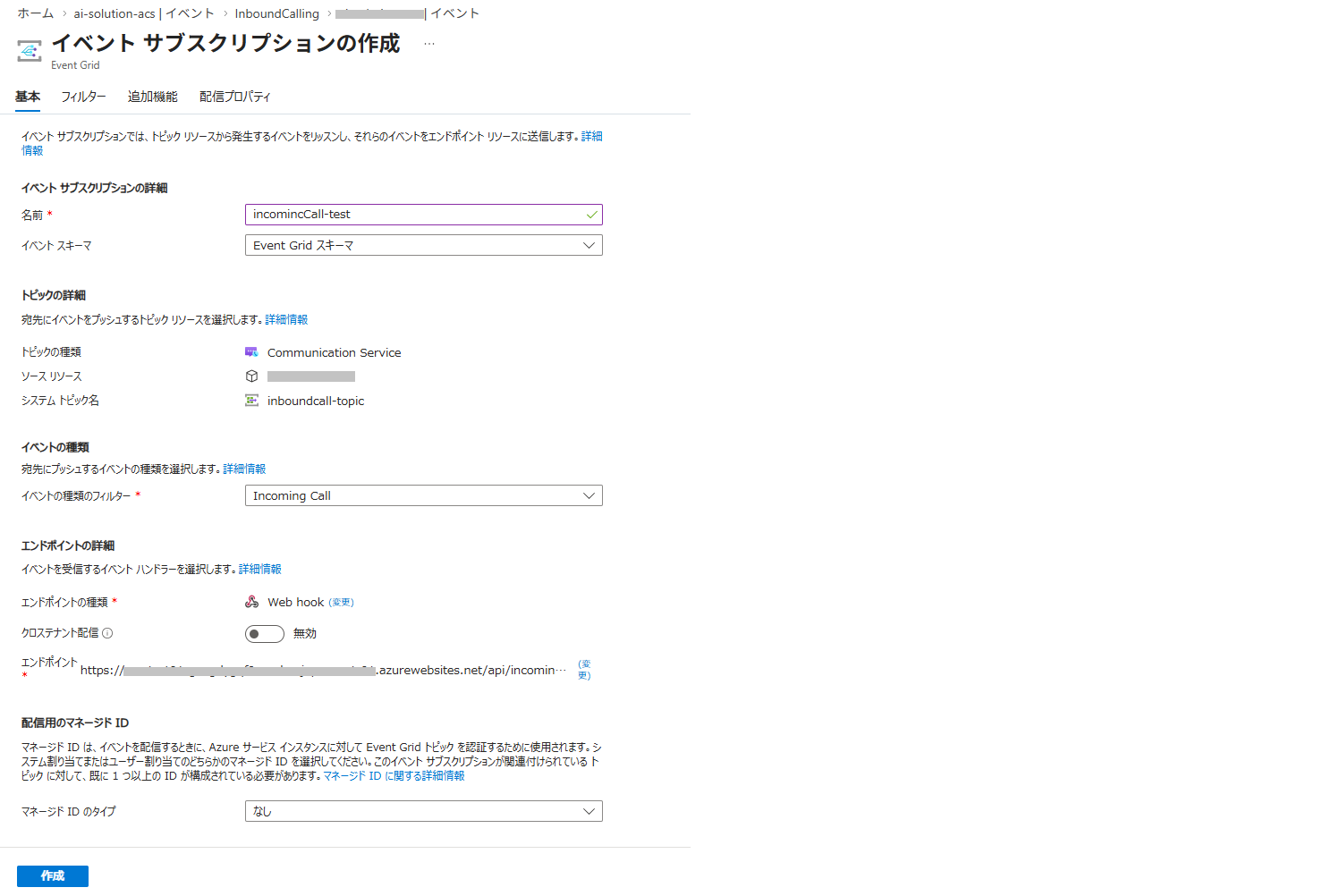
実際に電話をかけてみると、冒頭の挨拶(Azure Speech Service)から、Realtime API によるAIサポート員の挨拶があり、それ以降は実際に会話ができるようになります。試してみるとわかるのですが、Realtime API の応答は、かなり自然な形で会話ができます。
実際の電話での通話イメージをお伝えするのが難しいので、実行時ログを示します。
[Greeting] の箇所が、Azure Speech による冒頭挨拶になります。それに続いて、AIサポート員(ここでは、キュイと名乗っています)に挨拶があり、[User] 部分が問い合わせユーザーからの発話になります。
INFO:     Started server process [4112]
INFO:     Waiting for application startup.
[Server] Callback URL : https://xxxxxx.jpe1.devtunnels.ms/api/callbacks
[Server] Incoming Call: https://xxxxxx.jpe1.devtunnels.ms/api/incoming-call
[Server] Media WS URL : wss://xxxxxx.jpe1.devtunnels.ms/ws
INFO:     Application startup complete.
INFO:     Uvicorn running on http://0.0.0.0:8080 (Press CTRL+C to quit)
[IncomingCall] From: 4:+81900000000
[IncomingCall] Answered. ConnectionId: 12345678-1f83-4d06-ac85-d61aa1025903 sid: ce402dab-c72b-4f63-9503-256d37fabc41
INFO:     xxx.xxx.xxx.xxx:0 - "POST /api/incoming-call HTTP/1.1" 200 OK
[CallEvent] Microsoft.Communication.CallConnected | 12345678-1f83-4d06-ac85-d61aa1025903
[OpenAI] Pre-warm started for sid: 12345678-c72b-4f63-9503-256d37fabc41
[Play] Greeting triggered: お電話ありがとうございます。ただいま、AIサポート員におつなぎいたしますので、少しお待ちください。
INFO:     xxx.xxx.xxx.xxx:0 - "POST /api/callbacks HTTP/1.1" 200 OK
[CallEvent] Microsoft.Communication.ParticipantsUpdated | 12345678-1f83-4d06-ac85-d61aa1025903
INFO:     xxx.xxx.xxx.xxx:0 - "POST /api/callbacks HTTP/1.1" 200 OK
[CallEvent] Microsoft.Communication.PlayStarted | 12345678-1f83-4d06-ac85-d61aa1025903
INFO:     xxx.xxx.xxx.xxx:0 - "POST /api/callbacks HTTP/1.1" 200 OK
[AzureOpenAI] Connected (deployment: gpt-realtime-1.5)
[AzureOpenAI] Session created
[AzureOpenAI] Session updated
[AzureOpenAI] Greeting deferred (waiting for audio callback)
[CallEvent] Microsoft.Communication.PlayCompleted | 12345678-1f83-4d06-ac85-d61aa1025903
[Play] Greeting completed
[MediaStreaming] Triggered for 12345678-1f83-4d06-ac85-d61aa1025903
INFO:     xxx.xxx.xxx.xxx:0 - "POST /api/callbacks HTTP/1.1" 200 OK
INFO:     xxx.xxx.xxx.xxx:0 - "WebSocket /ws?sid=12345678-c72b-4f63-9503-256d37fabc41" [accepted]
[MediaServer] ACS WebSocket connected
[MediaServer] Using pre-warmed client (sid: 12345678-c72b-4f63-9503-256d37fabc41)
INFO:     connection open
[AzureOpenAI] Initial greeting triggered
[MediaServer] AudioMetadata: {'subscriptionId': '12345678-d538-47a2-a132-96b80a8b36c8', 'encoding': 'PCM', 'sampleRate': 16000, 'channels': 1, 'length': 640}
[MediaServer] OpenAI ready
[CallEvent] Microsoft.Communication.MediaStreamingStarted | 12345678-1f83-4d06-ac85-d61aa1025903
[MediaStreaming] Started
INFO:     xxx.xxx.xxx.xxx:0 - "POST /api/callbacks HTTP/1.1" 200 OK
こんにちは、QUICK E-Solutionsのキュイです。お電話ありがとうございます。本日はどのようなお手伝いができるか、どうぞお気軽にお聞かせくださいね。
[AzureOpenAI] Response done
[AzureOpenAI] Speech detected
[AzureOpenAI] Speech ended
[User] こんにちは。
こんにちは!今日はどんなご用件でしょうか?お気軽にお聞かせください。
[AzureOpenAI] Response done
[MediaServer] ACS WebSocket disconnected
INFO:     connection closed
[CallEvent] Microsoft.Communication.MediaStreamingStopped | 12345678-1f83-4d06-ac85-d61aa1025903
INFO:     xxx.xxx.xxx.xxx:0 - "POST /api/callbacks HTTP/1.1" 200 OK
[CallEvent] Microsoft.Communication.CallDisconnected | 12345678-1f83-4d06-ac85-d61aa1025903
[Call] Disconnected
INFO:     xxx.xxx.xxx.xxx:0 - "POST /api/callbacks HTTP/1.1" 200 OK
[AzureOpenAI] Connection closed
[MediaServer] Session cleaned up
ツールの追加
Realtime APIのセッション作成時に指定する instructions に指示文に知識を詰め込めば、ある程度の知識を持ったAI応答が可能となります。単純なAIであれば、その対応でも良いかもしれませんが、ツールを追加することで、外部データを使用した応答ができるようになります。
1. 独自関数の呼び出し
Function Calling 機能を使用した独自ツールの定義です。ここでは、サンプルとして固定の関数を用意しています。session.update 関数を呼び出す前に、ツールの型を登録します。
            # 独自 Function Calling ツールを登録
            tools: list[dict] = list(custom_tools.TOOL_DEFINITIONS)
            if tools:
                session_params["tools"] = tools
                session_params["tool_choice"] = "auto"
                print(f"[AzureOpenAI] ツール登録数: {len(tools)}")
            await self._conn.session.update(session=session_params)
ツール情報は、以下のようなダミー関数を仕込んでいます。
TOOL_DEFINITIONS: list[dict] = [
    {
        "type": "function",
        "name": "get_current_time",
        "description": "現在の日時を取得する。時間を聞かれた場合は、常に呼び出すこと。",
        "parameters": {
            "type": "object",
            "properties": {},
            "required": [],
        },
    },
    {
        "type": "function",
        "name": "get_customer_info",
        "description": "電話番号から顧客情報を取得する",
        "parameters": {
            "type": "object",
            "properties": {
                "phone_number": {
                    "type": "string",
                    "description": "顧客の電話番号(例: 090-0000-0000)",
                },
            },
            "required": ["phone_number"],
        },
    }
}
実際に呼び出されるツールは、別で実装しておきます。
# ──────────────────────────────────────
# ② ツール実行(関数名 → 実処理のディスパッチ)
# ──────────────────────────────────────

async def execute_tool(name: str, arguments_json: str) -> str:
    """
    Function Calling のツールを実行し、結果を JSON 文字列で返す。
    openai_realtime.py の _handle_function_call() から呼ばれる。
    """
    try:
        args = json.loads(arguments_json) if arguments_json else {}
        print(f"[Tool] {name}({args})")

        if name == "get_current_time":
            result = _get_current_time()
        elif name == "get_customer_info":
            result = await _get_customer_info(args["phone_number"])
        else:
            result = {"error": f"未定義の関数: {name}"}

        print(f"[Tool] {name} → {result}")
        return json.dumps(result, ensure_ascii=False)

    except KeyError as e:
        return json.dumps({"error": f"引数不足: {e}"})
    except Exception as e:
        return json.dumps({"error": str(e)})


# ──────────────────────────────────────
# ③ 各ツールの実装
# ──────────────────────────────────────
def _get_current_time() -> dict:
    now = datetime.now()
    return {
        "datetime": now.strftime("%Y年%m月%d日 %H:%M"),
        "date": now.strftime("%Y-%m-%d"),
        "time": now.strftime("%H:%M:%S"),
    }


async def _get_customer_info(phone_number: str) -> dict:
    dummy_db = {
        "090-0000-0000": {
            "customer_id": "C001",
            "name": "山田 太郎",
            "plan": "プレミアムプラン",
            "since": "2022-04-01",
        },
        "080-0000-0000": {
            "customer_id": "C002",
            "name": "佐藤 花子",
            "plan": "スタンダードプラン",
            "since": "2023-10-15",
        },
    }
    customer = dummy_db.get(phone_number)
    if customer:
        return customer
    return {"found": False, "message": "顧客情報が見つかりませんでした"}
イベント処理部には、ツール呼び出しの実装が必要となります。
        elif t == "response.function_call_arguments.done":
            # 独自 Function Calling の実行
            asyncio.create_task(
                self._handle_function_call(
                    call_id=event.call_id,
                    name=event.name,
                    arguments=event.arguments,
                )
            )
2. MCPサーバーの呼び出し
MCPサーバー情報を登録しておくことで、外部ツールを利用できます。MCP処理は、Realtime APIの内部で自動的に処理されるため、使用可能なMCPツールがある場合は、実装はシンプルになります。MCPツールを設定する関数を用意し、MCP定義がある場合に、tools に追加設定するコードを実装します。
def _build_mcp_tool() -> dict | None:
    """環境変数から MCP ツール設定を構築(未設定なら None)"""
    url = os.getenv("MCP_SERVER_URL")
    if not url:
        return None
    tool: dict = {
        "type": "mcp",
        "server_label": os.getenv("MCP_SERVER_LABEL", "mcp-server"),
        "server_url": url,
        "require_approval": os.getenv("MCP_REQUIRE_APPROVAL", "never"),
    }
    auth = os.getenv("MCP_AUTH_TOKEN")
    if auth:
        tool["authorization"] = f"Bearer {auth}"
    return tool
            # MCP サーバーをネイティブツールとして追加
            mcp_tool = _build_mcp_tool()
            if mcp_tool:
                tools.append(mcp_tool)
                print(f"[AzureOpenAI] MCP ツール登録: {mcp_tool['server_url']}")
            if tools:
                session_params["tools"] = tools
                session_params["tool_choice"] = "auto"
                print(f"[AzureOpenAI] ツール登録数: {len(tools)}")
ここまで実装すると、ツールに対応した応答ができるようになります。今回はサンプルツールの実装ですが、実際にデータベースを検索する処理などに差し替えれば、実用的な情報を使用した回答が得られるようになります。
まとめ
本記事では、Azure Communication Services (ACS) と Azure OpenAI GPT Realtime API を組み合わせ、実用的な「AIコールセンター」のようなものを構築するプロセスを解説しました。
単に技術を繋ぐだけでなく、「着信直後の固定ガイダンスによる待機時間の解消」や「Function Calling を用いた外部データの参照」といった実装を加えることで、より現場のニーズに近い、スムーズで高機能な音声体験が実現できることをご紹介しました。
特に、MCP(Model Context Protocol)サーバーとの連携が可能になったことで、既存の社内システムや外部ツールとの統合も容易になり、AIによる電話応対の可能性はさらに広がっています。
AIを活用した次世代のカスタマーサポートは、すでに現実的なフェーズに入っています。本記事が、皆様の業務効率化や新しいサービス開発のヒントになれば幸いです。
※ 本記事の内容は2026年4月時点の仕様に基づいた検証結果です。
QUICK E-Solutionsでは、AIを活用した業務効率化・システム導入のお手伝いをしております。
それ以外でも 様々なアプリケーションの開発・導入を行っております。提供するサービス・ソリューションにつきましては こちら に掲載しております。
システム開発・構築でお困りの問題や弊社が提供するサービス・ソリューションにご興味を抱かれましたら、ぜひ一度 お問い合わせ ください。
※ Microsoft、Azure、および Azure OpenAI Service は、米国 Microsoft Corporation の米国およびその他の国における登録商標または商標です。
※ OpenAI は、米国 OpenAI OpCo, LLC の商標です。